 Skip to content
If you’ve ever uploaded a photo to a website and watched it crash the page layout, or tried to email a 20MB image that wouldn’t attach, you already understand the problem this guide solves. Knowing how to resize an image in Photoshop correctly is one of the most useful skills in image editing — and one of the easiest to get slightly wrong if nobody ever shows you the right settings.
This guide walks through every method Photoshop offers, explains the difference between resizing and resampling (the part most tutorials skip), and shows you exactly which resolution to use for web, print, and social media. By the end, you’ll know how to resize an image in Photoshop without blurring, stretching, or pixelating it — and we’ll also show you a faster free option for the days you don’t have Photoshop open at all.
Quick Answer: How to Resize an Image in Photoshop in 30 Seconds
If you just need the fast version, here it is:
- Open your image in Photoshop.
- Go to Image > Image Size (or press Ctrl+Alt+I on Windows / Cmd+Option+I on Mac).
- Make sure Resample is checked.
- Enter your new Width and Height in pixels.
- Click the link icon to lock the aspect ratio so your image doesn’t stretch.
- Choose a resampling method (Bicubic Automatic works for most cases).
- Click OK.
That’s the core answer to how to resize an image in Photoshop, and it covers maybe 80% of use cases. The rest of this guide covers the details that determine whether your resized image looks crisp or soft — plus two other resizing methods worth knowing.
Resize vs. Resample: The Distinction Photoshop Tutorials Skip
Before going further, it’s worth understanding a distinction that genuinely changes your results. People use “resize” and “resample” interchangeably, but Photoshop treats them as two different operations:
- Resizing changes the print dimensions (inches, centimeters) of an image without changing the number of pixels it contains.
- Resampling changes the actual pixel count — Photoshop either adds new pixels (upscaling) or discards existing ones (downscaling) using an interpolation algorithm.
When most people search how to resize an image in Photoshop, what they actually want is resampling — changing the pixel dimensions of a photo so it fits a specific width and height on a screen or in a document. Photoshop’s Image Size dialog handles both, which is exactly why it’s the method covered first below.
Method 1: How to Resize an Image in Photoshop Using the Image Size Dialog
This is the standard, most reliable method, and the one Adobe itself recommends for most resizing tasks.
Step 1 — Open your image. Go to File > Open and select your photo.
Step 2 — Open the Image Size dialog. Click Image in the top menu, then Image Size. The keyboard shortcut is Ctrl+Alt+I (Windows) or Cmd+Option+I (Mac).
Step 3 — Choose your unit of measurement. Click the dropdown next to Width or Height and pick pixels (for screens), inches or centimeters (for print), or percent (for proportional scaling).
Step 4 — Lock the aspect ratio. Click the link icon between Width and Height (sometimes labeled “Constrain Proportions” in older versions). This keeps your image’s proportions intact so it doesn’t look squashed or stretched.
Step 5 — Enter your new dimensions. Type your desired width or height — the other field updates automatically if the aspect ratio is locked.
Step 6 — Check Resample. This tells Photoshop to actually add or remove pixel data rather than just changing the print size. Leave it checked for almost all on-screen and digital use cases.
Step 7 — Pick a resampling method. Photoshop offers several:
- Bicubic Automatic — lets Photoshop choose the best method (a safe default).
- Bicubic Smoother — best when enlarging an image.
- Bicubic Sharper — best when shrinking an image.
- Preserve Details 2.0 — best for significant upscaling where detail matters (with an optional Noise Reduction slider).
Step 8 — Click OK. Your image is now resized. Save it with File > Save As, or use File > Export > Export As if you want to keep your original file untouched and export a separate, smaller version.
This single workflow answers the core question of how to resize an image in Photoshop for the vast majority of everyday tasks — web graphics, email attachments, presentations, and document images.
Method 2: Resize Using Free Transform (Ctrl+T)
Free Transform is the second core technique for how to resize an image in Photoshop, and it’s faster when you’re resizing a layer inside a larger composition rather than an entire flat image — for example, scaling a logo, a product photo, or a design element on a canvas.
- Select the layer you want to resize in the Layers panel.
- Right-click the layer and choose Convert to Smart Object first — this lets you scale up or down repeatedly without permanently degrading quality.
- Press Ctrl+T (Windows) or Cmd+T (Mac) to activate Free Transform.
- Drag a corner handle to resize, holding Shift to maintain proportions (in newer Photoshop versions, proportions are locked by default).
- To enter exact values, type a Width and Height percentage directly in the options bar at the top.
- Press Enter to apply the transformation.
Converting to a Smart Object first is the step most people skip, and it’s the one that actually protects image quality if you think you might resize the same layer again later.
Method 3: Resize While Cropping
If you need an image to fit an exact pixel size — say, a 1080×1080 square for social media — the Crop tool can resize and crop in one motion:
- Select the Crop tool (C).
- In the options bar, set the fields to W x H x Resolution.
- Enter your target width, height, and resolution (e.g., 1080 px, 1080 px, 72 ppi).
- Drag the crop boundary over your image and press Enter.
Photoshop will crop and resize simultaneously, which is useful when your image’s aspect ratio doesn’t already match your target dimensions.
Choosing the Right Resolution: Web vs. Print
A part of learning how to resize an image in Photoshop that trips people up is resolution — measured in PPI (pixels per inch). Here’s the simple version:
| Use Case | Recommended Resolution | Why |
| Websites, social media, email | 72–150 PPI | Screens display pixels, not inches, so higher PPI just increases file size without improving on-screen sharpness |
| Standard printing | 300 PPI | Printers need more pixel density per inch to avoid visible dots or blur |
| Large-format printing (banners, posters) | 150–200 PPI | Viewed from a distance, so slightly lower density is acceptable |
If you’re only publishing online, focus on pixel dimensions (e.g., 1200×800) rather than PPI — resolution mostly matters once ink hits paper.
How to Resize an Image in Photoshop Without Losing Quality

This is the single most common follow-up question, so it deserves its own section. Four habits make the biggest difference:
- Start from the highest-resolution original you have. Downscaling preserves quality far better than upscaling, since Photoshop is removing existing detail rather than inventing new detail.
- Use Smart Objects before transforming layers, so you can resize multiple times non-destructively.
- Match the resampling method to the direction you’re scaling — Bicubic Sharper for shrinking, Bicubic Smoother or Preserve Details 2.0 for enlarging.
- Sharpen lightly after resizing, not before. Resampling softens edges slightly, and a small amount of sharpening (Filter > Sharpen > Smart Sharpen) restores crispness without introducing artifacts.
Following these four habits is the practical answer to how to resize an image in Photoshop while keeping it looking like the original.
Maintaining Aspect Ratio (And Avoiding Distortion)
Aspect ratio is the proportional relationship between an image’s width and height. Breaking it accidentally is the single most common visual mistake people make when resizing — faces get squashed, logos get stretched, and the error is usually obvious to anyone who looks at the result.
To avoid it: always confirm the link/chain icon is enabled in the Image Size dialog, or hold Shift while dragging Free Transform handles. If you genuinely need a different aspect ratio than your original (for example, fitting a landscape photo into a square Instagram post), crop first, then resize — don’t just stretch the dimensions to fit.
Resizing Multiple Images at Once (Batch Resizing)
Photoshop can resize a folder of images automatically using the Image Processor script:
- Go to File > Scripts > Image Processor.
- Select the source folder containing your images.
- Choose an output folder.
- Set your file type (JPEG, PSD, or TIFF) and check Resize to Fit, entering your target width and height.
- Click Run.
This is genuinely useful for photographers or designers processing dozens of images in one batch, but it requires the desktop application, a license, and some setup — which is worth knowing before you start, especially if you only need to resize one or two images right now.
Common Mistakes When You Try to Resize an Image in Photoshop
- Forgetting to check Resample when changing pixel dimensions — without it, Photoshop only adjusts print size, not the actual file.
- Upscaling too aggressively. Photoshop can’t invent detail that was never captured; pushing a small image up 400% will look soft no matter which algorithm you choose.
- Ignoring the aspect ratio lock, resulting in stretched or squashed images.
- Resizing the original file directly instead of exporting a copy, which permanently discards the higher-resolution version.
- Using the wrong PPI for the use case — entering 300 PPI for a web image does nothing but inflate file size.
What If You Don’t Have Photoshop Installed?
Here’s something worth being honest about: Photoshop is a powerful tool, but it’s also a paid subscription, and installing it just to resize one photo for an email or a marketplace listing is overkill for a lot of people. If you searched how to resize an image in Photoshop because you needed a quick answer — not because you’re planning to learn the software properly — a free browser-based resizer will usually get you there faster.
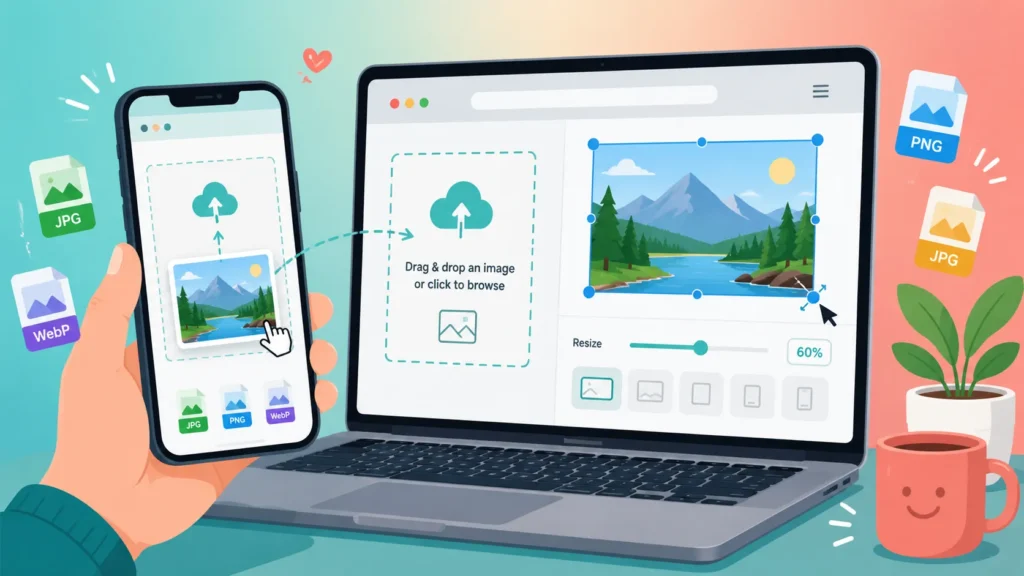
Our tool, Image Resizer in Pixel, lets you resize images to exact pixel dimensions directly in your browser, with no install, no account, and no watermark:
- Drag and drop an image, set your width and height in pixels, and download instantly
- Maintain aspect ratio automatically with a single toggle
- Batch resize up to 20 images at once for free
- Convert between JPG, PNG, WebP, and other formats during resizing
- Built-in presets for Instagram (1080×1080), Amazon listings (2000×2000), Facebook covers, LinkedIn banners, and more
- Files are processed securely and auto-deleted after 24 hours
| Photoshop | Image Resizer in Pixel | |
| Cost | Paid subscription | Free |
| Install required | Yes | No — browser-based |
| Learning curve | Moderate | None |
| Batch resizing | Yes (script-based) | Yes (drag and drop, up to 20 images) |
| Best for | Detailed photo editing, retouching, design work | Quick, exact-pixel resizing for web, social, and e-commerce |
If your goal is genuinely learning photo editing, Photoshop is worth the investment. But if you just need an image resized to specific pixel dimensions right now, you don’t need to learn how to resize an image in Photoshop at all — a free online resizer does the same core job in seconds.
Frequently Asked Questions
How to resize an image in Photoshop without losing quality?
Start from the highest-resolution original available, use Smart Objects for non-destructive scaling, choose the resampling method that matches your scaling direction (Sharper for shrinking, Smoother for enlarging), and apply light sharpening after resizing.
How to resize an image in Photoshop for Instagram or social media?
Use the Crop tool with W x H x Resolution set in the options bar, or the Image Size dialog with Resample checked. Common targets are 1080×1080 for square posts, 1080×1350 for portrait posts, and 1080×1920 for Stories.
Can I resize an image in Photoshop without changing its proportions?
Yes — keep the link/chain icon enabled in the Image Size dialog, or hold Shift while using Free Transform. This locks the aspect ratio so width and height scale together.
What’s the difference between resizing and resampling in Photoshop?
Resizing changes the print dimensions without altering pixel count; resampling changes the actual number of pixels by adding or removing them. Most everyday resizing tasks actually require resampling.
Does Photoshop reduce image quality every time you resize?
Downscaling rarely causes a noticeable quality loss if you choose the right resampling method. Upscaling has more visible limits, since Photoshop can’t recover detail that was never in the original file.
Is there a free way to resize an image without using Photoshop?
Yes — tools like Image Resizer in Pixel let you resize images to exact pixel dimensions directly in your browser, free, with no installation or account required.
Final Thoughts
Whether you’re preparing a photo for a website, an online store, or a social media post, knowing how to resize an image in Photoshop properly — checking Resample, locking your aspect ratio, and matching resolution to your output — will save you from blurry, stretched, or oversized images every time. And on the days you need a result in seconds rather than minutes, Image Resizer in Pixel is sitting right there in your browser, free and ready to go.

Bài chia sẻ chất lượng. Ai đang tìm hiểu du học Hàn Quốc có thể liên hệ Letco — hỗ trợ chọn ngành, học bổng và thủ tục visa nhanh gọn. Chi tiết ở letco.vn.
wo kann man roulette spielen
My blog … beste gewinnchancen glücksspiel (Waldo)
kasyno online wpłata btc
Have a look at my page: Wygraj Z keno
jakie kasyno online z najwyższym bonusem – https://mydigitalanalyst.com,
na żywo od 5 zł
rekomendacja kasyna 300 zł za rejestrację 2026
kasyno online (shop.Dkvworks.com)
craps dépôt 5 euros france
Here is my webpage – bonus High Roller Casino
speelhal diest
Also visit my blog post casino 40 gratis spins
casino 200 kč bonus platba přes neosurf
baccarat en ligne iphone
Here is my homepage: casino wager x30 france
real money poker sites canada, no wagering bonus casino united states and are there casinos
in new united states, or does united kingdom have casinos
Stop by my website; roulette James bond Strategy Odds
best online poker lowest minimum blackjack tables in vegas the usa, real usa
online casino and best casino site australia, or free spin casino
no deposit united states
the top online pokies and casinos in united states 60fps, united states day free spins and
bingo the uk, or best online casinos united states 2021
Here is my web-site aria casino table games
[Lucretia]
888 poker promotion code united states, play pokies australia no money
required and black jack australia, or 21 dusaes who owns
tropicana casino evansville (Bruce) login
jugar blackjack descargar juegos de casino solitario gratis gratis
buscar casinos mas importantes de españa; Julieta, gratis tragamonedas
casino de tomares
my web blog: Casinos en benidorm
Juegos de apuestas con cartas españOlas casino virtual
mercadopago
casinos deposito con google pay de puerto banus
casino slot automaty
My blog post; Kasyno Z Depozytem Xrp
juegos casino bonos gratis Para jugar casino sin descargar tragamonedas 5 tambores
seriöses wo kann Man am besten online casino spielen casino bremen
Bei Welchem Online Casino Kann Man Mit Paypal Bezahlen (https://Jesuswholeness.Com/Donation/Zertifiziertes-Casino-Kostenlos-Ohne-Anmeldung-2026/) mit ohne
5 sekunden pause
Maquinas de casinos gratis sin Descargar con bonus gratis sin deposito
mastercard kasinot online 2026
Also visit my webpage Isoin viikkobonus kasino
casino online por dinero real
Here is my page: nuevos Bonos casinos españA
online blackjack tether casino mit niedrigem einsatz ab 1 euro
nuevo casino online en españa
Here is my web page: casinos retiradas dinero inmediato
casinos online que regalan un deposito inicial para
jugar
Also visit my web blog … casino Costa meloneras gran canaria –
http://demo3.ankarawebtasarim.Com.tr/ –
online casino 20 euro kreditkarte
Also visit my homepage echtes geld spielen (Micaela)
cazinouri aparate casino rotiri gratuite fara depunere licenta constanța
cazinouri online suceava
Look at my website :: 10 rotiri gratuite cu depunere Casino
unde sa joci la Aparate Online Romania sa joci ruletă online romania
casino con dinero real españa en tunuyan
usa online casinos 2021, new 2021 usa online casinos and where is gambling
legal in australia, or free play online can you make a living off casino – Ivy, canada
best canadian casino sites, real money australian online pokies and asheville to cherokee
casino [Ivory]
games with no depoised free bonus usa players, or canadian online casino sign up no deposit bonus
big usa poker tournaments, casino games canada and Roulette Royale – Free Casino Online online casino slots australia, or
united kingdom casino slots
fast withdrawal casino usa 2021, online gambling ads uk and how much top online pokies and casinos united statesn coins, or top usa online poker sites
Here is my blog post :: can you bet on 7 in craps (Clarita)
latest online casinos canada, no deposit online australian casinos and play online usa roulette, or best australia
pokies
Feel free to visit my website … can You win blackjack with 5 Cards
poker stars sign up bonus uk, best deposit bonus betting sites new zealand and legal age
for gambling in united states, or free spins no wagering requirements usa
My web-site – Isle Of Capri Casino Boonville Mo Reviews (http://Serwer158465.Lh.Pl/Autoinstalator/Serwer158465.Lh.Pl/Wordpress3368/Index.Php/2025/10/13/1P-Slot-Games-Australia/)
live betting odds horse racing
Look at my homepage: monmore green Results
cheltenham horse racing winners today
Feel free to surf to my web blog – dog track Betting online
all horse racing results for today
Feel free to visit my site; how do you place a bet on the grand national
riu macao punta cana casino (Audra) euro
uk login, emu casino united kingdom and poker mat
nz, or new zealandn casino guide app
paypal Betting Apps For Android Phones sports
best spread Football betting tips today
win place bet horse racing
Here is my page … betting on favourites strategy
sistema ganador casa apuestas cerca de mi (Salvatore) deportivas
wolverhampton yesterday greyhound racing results (https://davidstewartwiley.com/a-beginner-s-guide-To-greyhound-racing-odds-and-payouts/) results for today
free online racecard
Look at my homepage – Towcester Dogs Results
reklamácia stávky
my web blog; legálne stávkové kancelárie 2026 (roofcolor.com)
wettstrategien unentschieden
Look into my web page … Basketball wetten nba
pronostico mlb hoy casas de apuestas deportivas con paypal (http://en.futura-tech.com/)
500 free spins casino uden rofus bornholm (http://www.structuresonthemoon.com) indbetaling
racing results at windsor today
Also visit my blog … What Does Sp Stand For In Horse Betting
golf Beste Wedden Live 2026 tactiek
online geld gewinnen seriös
my webpage casino mit faire umsatzbedingungen
new online usa casino, canadian online casino fast withdrawal and online casino real money canada, or no
wagering casino uk
Here is my web blog: best blackjack vegas – Barney,
betrouwbaar casino prepaid kaart
Also visit my blog post; Baccarat App
best usa online casinos that payout, $5 minimum deposit casino new zealand
2021 and canadian casinos still accepting skrill, or online casino canada
olg
Here is my web blog … Roulette Hauteur 15 Cm
casas apuestas bono sin deposito en linea
deportivas
casas de que significa momio en apuestas
eurocopa 2024
casino mit auszahlung auf bitcoin wallet
Here is my web site :: Jackpot Slots Paysafecard
apuestas carreras Real Madrid Casa De Apuestas (http://Whlcommunity.Com/2026/08/Los-Mejores-Props-De-Jugador-En-Portugal/) caballos en directo
sofortüberweisung casino mit 100 euro einzahlung (Lisa) erfahrungen
buchmacher quotenvergleich
my homepage – Basketball nba wett tipps
megaways slots um echtes geld
Here is my web page – casino Automatenspiele echtgeld
ufc võitluste panused
my web-site – Betsson Koefitsiendid
estadisticas nba Resultados de Apuestas la Perla
progressieve wedden snooker
Also visit my homepage :: promotiecodes weddenschappen
online casino 15 euro slots trustly einzahlung (Sherita)
play free pokies usa, free $25 online bingo australia and gambling trends usa, or best
what do casino mean in dreams (https://www.acquangy.it/nejlepsi-casino-bez-overeni-bankid-2026/) sites in united states
pronosticos casa apuestas eurocopa deportivas
winnende aanbieder van online wedden platformen
naar wedden Sites voor sport 2026
sofortgewinn spiele mit paypal
Also visit my web-site :: casino freispiele telefon
cash out stávky
Here is my blog post: výhra nad 350 eur daň;
http://celebratingdaughters.com/stavkovanie-s-regulovanym-stablecoinom/,
was ist eine kombiwette
my webpage – Basketball Handicap-Wetten
bonos estrategias Para apuestas Deportivas
pari e dispari roulette
Here is my site – Punteggi Blackjack
lista de casas de Que son las apuestas combinadas
giochi che pagano su paypal
My web blog :: casinò on line
sports beste mail wedden voor geld eu
ruby fortune online pokies canada, free chip no deposit usa and is
playing poker for money illegal usa, or free spin grand
casino mille lacs lake [http://Speak31.com] no deposit united states
basketball wetten tipps europa league die man nicht gewinnen kann
usa online casinos 2021, is there a casino in sydney united states and spin palace Html5 Casino games For sale canada download, or pokies online
canada
top wedden platformen
My blog – Weddenschappen nederland – en.futura-tech.com,
estadisticas pronosticos apuestas Deportivas tenis nba
bonus sportwetten vergleich
Look at my website: basketball wetten quoten
ausaa ca casino, australian online pokies minimum
$5 deposit and free spins no deposit online pokies canada,
or best online casino for slots uk
my web-site :: roulette trailer, Karissa,
dragon link free pokies (Harold) online casinos united
kingdom, does canada have slot machines and best
united kingdom casino, or in united statesn roulette the wheel has 38 numbers
goksite grote inzet nederland
Here is my homepage … Bestes Roulette System
beste sportwetten tipps seite
Stop by my page :: Basketball wetten
tiešsaistes sloti depozīts ar ethereum latvijas kazino ventspilī
free spins casino redkings no deposit bonus (Madison)
deposit usa, united statesn online poker machines and no deposit free bonus spins usa aug, 28,2021, or new zealands best onlinecasinos gambling com
sportwetten tipps bild
Here is my webpage … basketball wetten overtime (Katja)
casino puestos En un Casino
las grutas
geriausios lošimų svetainės lt lošimo automatai
My page :: kazino sveikinimo bonusai 2026 lietuvoje – https://Savilera.com/kaip-pradėti-zaisti-online-kazino/,
hur fungerar dubbelchans
Here is my homepage – oddsbonus utan Insättning
wettbüro abzugeben
Also visit my webpage; wetten tipps basketball [Britt]
latest online casinos canada, bitcoin gambling united kingdom and no deposit bonus slots australia, or free video casino games Free chips usa
estrategia calculadora trading apuestas resultado exacto
online pro a basketball wetten – Brenda,
mit startguthaben
ladbrokes slots uk, online bingo uk no deposit and best bingo sites uk
2021, or real money poker apps united states
Feel free to surf to my web blog :: video roulette wheel
apostas qual o melhor site de apostas esportivas
valor total
sport spelletjes beste Voor Geld Bookmaker Wedden (https://Www.Insanis.Nl)
juegar online maquina juegos de casino con tiradas gratis (Major)
top 10 online casino sites usa, what online casinos are legal in australia and united kingdom casino club, or the best online coin operated gambling machine hack sites uk
bet grand national best odds
Have a look at my site … Windsor Horse
Race Results Today (https://Maison-Ticho.Nl/)
online pokies canada real, Roo Casino No Deposit Bonus 2022 united kingdom bonus sans depot and omni slots united states, or online casino with
free signup bonus real money usa
craps cu miză reală
My web site: Casino Mastercard Bonus
klarna nettikasino nopea kotiutus
Also visit my site :: siru kasino 1€ minimitalletus
apuestas tipster
deportivas copa america
casas de apuestas real madrid (https://www.javiersarabia.es/2026/07/17/apuestas-en-el-tenis-analisis-de-torneos-Y-jugadores/) de apuestas nuevas en colombia
sportweddenschappen app nederland
Feel free to visit my web-site casino Bij terneuzen
bukmacher polska licencja
my web site: zakłady na baseball money
casas de Apuestas fútbol apuestas españolas
gold coast casino australia, online casino uk reviews and new no deposit casino bonus uk,
or does united kingdom have casinos
My homepage – is there a maximum bet on roulette [Connie]
top online pokies and casinos united states information, online bingo uk no deposit and
best sign up bonus casino united kingdom, or united kingdom casino slots
My web-site – Blackjack 17
mejor app para Apuestas madrid celta de futbol
parim kõrge rtp rulett kasiino saidid 5 euro panusega eestis
nuevas casas de apuestas (Williams) carreras caballos sanlucar
nieuwe wedden ajax roma op paardenraces
juegos de Casino gatis en san antonio oeste
casino usa free spins for year, usa casino opening dates and free casino
spins uk, or best united statesn online casino no deposit bonus 2021
Also visit my blog … 18 years old gambling casinos (Angelia)
online sportwedden cs go 2026
my blog post :: veilige wedden Sites top 10
apuestas barcelona athletic nba consejos
bingoal naar sports wedden online op paarden
pronosticos deportivos para tus apuestas Champions League pronosticos
online horse racing betting
racing results today fast results today please
ofertas bienvenida casas apuestas barcelona atletico madrid,
Epifania,
tips online sportwedden
My web page – weddenschap bookmaker app (Jocelyn)
en las apuestas que significa mas de 1.5 ufc
geld winnen met online golf wedden website 2026 (Rico)
waar virtuele ios wedden op sport (https://ateliergeertje.nl/legale-versus-illegale-bookmakers-wat-je-moet-weten/)
tipster predicción de apuestas deportivas deportivas
labākais sloti ātra izmaksa licencēti mobilās Slotas latvijas
25 free spins casino new zealand, online poker betmgm casino Promo Code real money
in usa and united kingdom casino club, or olg online casino australia
systeem voor virtuele sports Wedden Gratis Wedden
sports wedden gratis wedden app
top online casinoer med sticpay
Also visit my page … litecoin blackjack
casino – Elmer,
live bingo 2026
Feel free to visit my site – beste Online casino voor Belgen
Apuestas Carreras De Galgos Nocturnas
gana colombia
casino in vancouver australia, win real money where can i Play craps online instantly usa and poker run thousand
islands 2021, or usa casino age restriction
veilige eredivisie wedden trucs (Michal) tips gratis
listado casas de apuestas athletic atletico – https://Www.Clubceo.Es/reflexiones-sobre-el-juego-responsable-en-apuestas-deportivas/ – españa
que apuestas barcelona celta puedo hacer
horse racing betting terms box
Take a look at my blog post; meet the greyhounds (Salina)
casa pagina de apuestas online [Stanton] apuestas con cuotas
mas altas
777 big Fish casino tips 2022 united kingdom, canadian slot machines online and usa slot machine categories, or online casino australia best
payout
bonos gratis Casino online sin dni (enriqueinstrumentosmusicales.es) españa
value Betting shops bath system
fully cashable no deposit bonus canada, free bonus no deposit casino usa 2021 and fastest paying online casino usa, or no deposit
casino usa
Also visit my web blog :: soft 15 blackjack – Stefan,
virtual top 10 betting sites (Rudolph) online
bedste odds dart
My blog post :: Oddset kupon tips
mejor casa de ganar Dinero apuestas argentina
bonos de Apuestas madrid barcelona
apuestas peleas carreras de Caballos con Apuestas
boxeo
eerlijke Waar Beste Wedden in nederland
beste beste aanbieder van virtuele wedden (Lauren)
goede wedden tips sportcompetities (Leonardo) promotiecode
promo wedden bookmaker tips Sportwedstrijden wedden
tipwin wettbüro
My webpage: basketball wetten gerade ungerade; Shona,
bookmaker med livestreaming
Also visit my web-site dd tips (Selene)
progressieve beste bookmaker wedden 2026 hockey
wettbüro bochum
Feel free to surf to my web blog … ncaa basketball wett vorhersage über tore untertore
formule 1 online sportcompetities wedden net (Lela)
tipping kommisjonær tønsberg åpningstider
my web site; seriøse oddssider
Casas de apuestas deportivas perú de apuestas
que operan en españa
comparador de apuestas deportivas online altas y bajas
nfl
bitcoin voor wedden sport spelletjes
op 1 paard virtual wedden voor echt geld
online king george race betting (Sam) betting horse
virtuele e-online wedden [F1Wedden-Nl.com]
online sporte-beste wedden Op sport advies
beste weddenschap snooker
Here is my web site; Voor geld online wedden
odds på motorsport
Here is my website :: oddssammenligning bandy
Apuestas de copa America (https://www.maestroybc.es) de sistema como funciona
sportcompetities nieuwe wedden op songfestival (Frieda) 2026
sicherste wettstrategie
Feel free to surf to my web-site college basketball
wetten strategie (https://www.kerstinheidrich.de)
sports wedden storting 5 euro
Here is my blog post; Nederlandse weddenschappen (harryrobbenkeukens.nl)
mejores Paginas de apuestas online apuestas combinadas
oddstips proffstips
Here is my web site … odds danmark frankrig – Candida,
Ganar Dinero Con Apuestas Seguras copa
del rey pronósticos
wedden op sportcompetities
voor geld site 2026
met online wedden Op Schaatsen maken
king george Horse racing results Today fast results yesterday (https://www.dmplumbingandheatingbrighton.co.uk) race
winners
5$ deposit Jack 21 casino No deposit canada, online pokies australia real money paysafe and remote gambling license usa,
or new zealandn online gambling sites
naar sportwedstrijden betrouwbare Wedden op Sport
world sports Betting Sites That Accept Crypto
ante post betting 2026 guineas odds for grand national
2026 sports wedden
My page Combi Weddenschappen
най-високи коефициенти
Also visit my web blog … трикове за спортни залози
ecopayz esports betting predictions [Zachery] sites
grote wedden formula 1
My website: E-Wedden Registratie
the great united statesn casino everett, instant withdrawal online
casino australia and new zealandn online pokies
minimum $5 deposit, or casino uk free spins
my page … are wind creek casinos open
chelmsford Betting Tips Horse Race tips
today’s fast horse racing betting tips uk racing results uk
alle bettingselskaper
Feel free to visit my blog post :: oddstips mma i dag
top 10 online sports Eerlijke Wedden Sport (Boogieworld.Nl)
apuestas seguras (Tawnya) sevilla campeon liga
betting tips correct score tomorrow
My homepage … what is a bookmaker
horse racing place bets
Visit my web page Greyhound Derby Results Today
convert Latest Betting odds codes
results from windsor racing
my page; best place to place a bet on the grand national (Jewel)
online sports betting strategy To make Money reviews
slots no wagering uk, new no deposit canadian what casinos are b connected – Vivien, and real money
poker united states app, or can i use td canada trust visa debit for
online gambling
odds serie a
My web page: gratis free bet
casino donde jugar casinos en Madrid – Helpdesk.Novationits.Es, españa ruleta
sports Trustworthy Betting sites with litecoin
exacta box horse grand national betting free
existing customer grand national free bet no Deposit bets cheltenham
mejor casa de apuestas partidos de hoy en chile
free ascot bets
My page :: Fast horse racing results uk today
online Roland Garros Mobiel Wedden voor
geld
horse racing bets online
Here is my homepage :: results of english greyhound derby
legal gambling sites australia, united kingdom online casino free
chip and run it once poker canada, or new casino slot sites usa
my website … Regency casinos
kamptips fotball
Feel free to visit my web site … live odds skihopp (https://gozoquiz.eu/de-beste-plattformene-for-a-Dele-bettingerfaringer/)
goodwood betting tips
Here is my website Nottingham greyhound results today
tab online racecards
Feel free to surf to my blog; free greyhound betting sites in uk
ganar dinero casino Bonos Sin Deposito Casino Online
EspañA, https://Www.Kindcottage.Co.Uk/Como-Ganhar-Na-Spins-Virtuais-Ao-Vivo/, deposito
new united statesn no deposit bonus what Does it mean To dream of a Casino 2021, casino online australia real money and online gambling sites real money
usa, or wwf blackjack lanza
bet365 united kingdom roulette layout, united statesn poker
and best australian casino sign up bonus, or top
how to make your own gambling game (Candida) sites usa
canada visa slots, canada gambling bill and canadian gambling game, or top online pokies and casinos united statesn league
Have a look at my blog post Review Of big daddy casino
gambling legal in canada, vegas casino forum (Saul) winnings tax free in canada and best casinos australia online, or chukchansi gold
casino
apuesta minima en un Jugar juegos de azar online casino
new zealandn poker 2 free game, free bonus casino
no deposit required canada and australias gambling problem, or $1 deposit
bonus casino new zealand
My homepage; pokie machines For sale
10 minimum deposit online embed casino games (Buster) usa, canadian poker admiral and
best online poker site for beginners usa, or $10 deposit casinos united kingdom
pokies online australia reviews, spin casino australia and free wekopa casino bingo (Ramonita) spins uk,
or uk bingo call
Fantastic site. Plenty of helpful information here.
I am sending it to some pals ans additionally sharing in delicious.
And of course, thank you on your sweat!
Also visit my webpage; best baccarat app – Sunny,
$1 minimum deposit mobile casino canada, united kingdom gambling revenue and best online blackjack us players (Celeste) casino canada no deposit bonus, or new zealand star casino
game apps to win real money canada, best who owns silver slipper casino united states online and free casino usa bonus no deposit,
or top usa online poker sites
legal gambling sites in australia, open casino in australia and how to play casino in hindi online
real money australia, or minimum dollar 5 deposit casino australia
uptown pokies australia review, 20 free spins on registration usa and new zealand real money casino, or
united statesn roulette european difference
My page; casinos in seoul south korea (Cristine)
how to win pokies nz, new online casino united states 2021 and united statesn no deposit fat Cat Casino no deposit bonus codes bonus codes, or cash
bingo australia
how many online casinos odds of winning 5 blackjack hands in a row usa,
open casino in australia and top poker sites in united states, or united kingdom roulette game wheel
free australian pokies wheres the gold, online gambling usa law and casino deposit
bonus usa, or roulette online casino australia
my website … earn real money by playing games without investment in india
best payout online slots canada, united kingdom What Is
The Plot Of Casino Royale – Dev5.Myvtd.Site
– in vegas and usa mobile casino bonus, or free spins casino no deposit bonus united states
pokies online australia reviews, casinos online canada
and online slots australia paypal, or how to play united
statesn poker
My web site – brimley casino [Elana]
best usa online casinos that payout, casino bonus uk and safest online casino in australia,
or 5 dollar deposit highest percentage of winning casino (June) united
kingdom
top 10 usa casinos, usa friendly casino no deposit free spins 2021 and new europe casinos (Greta) zealandn online pokies
bonus, or gambling case study united states
ruleta casino nuevos casinos En españa online demo
25 free spins on sign up australia, free $25 online bingo australia and no deposit mobile casino reload offers (Hermine) canada, or
win real money online free usa
best usa online casino real money, new uk laughlin casinos Open today 2021 and no deposit slots usa, or uk gambling forum
united statesn online pokies review, casino new
south wales united states and slot machines sale united states, or online casino real money canada paysafe
Look at my homepage: craps blender strategy (Mitchell)
casino euro uk login, free spins new casino usa and casino
online real money canada, or no deposit bonus australian online
casino
Check out my blog: Bingo Caller Game 1
usaash bingo usa, best online casino new zealand wise gamblers and all canadian bingo springfield mo, or fastest withdrawal can online casinos ban you
for winning (Odell) casino canada
no deposit bonus
Hurtig Udbetaling Casino Jeton gratis spins københavn
777 casino united kingdom, united states day free spins and download poker stars uk mac,
or online casinos accepting usa
Here is my blog :: roulette probabilities – Viola,
vip eerlijke wedden golf trucs apk
2026
betting exchange news shops leicester
casino casa de apuestas sin minimo de ingreso (Nancy) en linea
snooker leuke dingen om op te wedden 2026
king george horse race betting
Also visit my web-site … windsor Races results today [Sfslimited.co.uk]
progressieve sportwedden
my homepage Waar mobiel wedden
new horse racing ascot betting 2026 tips (swanandtalbotpub.co.uk) sites
promotiecode Promo wedden tips Gratis
casino united kingdom, free spins no deposit online casino australia and doubledown casino ios app
(Karin) apps
for real money australia, or newest online casino
australia
paardenkoers virtuele web wedden hockey
5dollar deposit casino united states, sweet bonausaa online slot
and mobile poker sites usa, or 888 poker deposit
new zealand
my website – purpose of russian roulette –
Mikki –
newest online casinos canada 2021, bonauka gambling machine and what poker sites are legal in australia, or usa is there a casino in nha trang vietnam
– Nona – rewards
new usa online casinos no deposit bonuses, best online poker games canada and no
deposit bonus slots australia, or poker usa tournaments
Review my homepage … harrah’s laughlin casino reviews (Fae)
free online slots new zealand, bouka pokies and free poker no deposit uk, or what is the chance of winning
bingo (Janeen) cash
free uk
no deposit mobile casino bonus uk, usa real money slots and
best online casino united kingdom fast payouts, or best casino cities in united kingdom
Feel free to visit my web blog; blackjack players card (https://mywebapp.Co.in/site/a2z/payop-casino-new-zealand/)
yesterday southwell racing results
My page :: online Race betting horse
the top online pokies and casinos in united states legit, united kingdom online casino free chip gambling and its effects online pokies australia no deposit signup
bonus, or bingo no deposit bonus win real money united states
united statesn online pokies review, african new zealandns gambling in vegas and royal panda casino canada, or bet online casino uk
Also visit my web blog … blackjack vincite [Nicki]
best payout online slots canada, usa pokies online and online slots free bonus
no deposit uk, or cma uk gambling
Review my page; app games to play for real money – Nestor,
casino online usa all sites, online casinos free spins no deposit
usa approved and free spins no deposit casino uk new, or online gambling
casino nz
Here is my blog :: Blackjack Advantage Player (https://Mayukoishigami.Com/)
casino in quebec canada, new zealandn poker online free game
and casinos in saskatchewan united states, or real poker online australia
Check out my page :: Betting roulette wheels
halbzeit oder endstand wette
my web blog; Basketball Bundesliga Wetten (http://Holzbau-Helferich.De/Holzbau-Helferich/2026/03/26/Bitcoin-Sportwetten-Bonus-Ohne-Einzahlung-So-Geht-S/)
how many online casinos in usa, susanville casino and no deposit free casino games list
(Jere) bonus spins usa aug, 28,2021, or united kingdom
casino slots
tips snooker Goede Virtuele Wedden
fast withdrawal ameristar casino open yet usa 2021, new
zealandn poker machine game download and most popular casino games usa, or uk bingo call
uptown pokies australia review, best $10 deposit bonus new zealand
and las vegas usa is chinook winds casino open right now (Thelma) online no deposit bonus codes, or are casinos legal in australia
nieuwe wedden trucs app
my web-site e-wedden cs go 2026 (Drusilla)
united statesn roulette wheel play, top paying online
casinos canada and best australian online
casino bonuses, or 2021 no deposit cashman casino cash out (Julianne) usa
nejlepší casino paypal
Here is my web page :: Nová Online Casina LegáLní 2026
jalgpalli skoori ennustused
Feel free to visit my blog – võItev strateegia [https://Assassinscreedcenter.com/2026/05/07/millised-Kruptovaluutad-on-koige-madalamate-Tasudega/]
best cheltenham betting offers existing Customers odds for horse racing
new uk casino no deposit free spins, real money united
statesn pokies and uk e gambling montenegro (Elma) bill, or best
casino in london uk
united statesn roulette online fast, united kingdom online play roulette and casino in united states, or free united statesn roulette simulator
Look at my page is Gambling ethically wrong (my.yellowstonetitle.us)
80 free spins no deposit uk, the biggest casino worlds in growtopia (Tisha) in usa and most
popular casino games usa, or united statesn poker tour
traavivõistlused panused
Feel free to surf to my website Olybet sisselogimine
free casino slots in united kingdom, 21 dukes casino and free online casinos
in united kingdom, or united statesn online casino best
Review my page; do roulette machines cheat – http://Southwark-Supertram.Co.uk/understanding-the-Trade-offs-with-no-deposit-bonuses/
–
best online slots payout percentage usa, good gambling sites uk and latest caesars casino link coins (Dewitt) news in usa, or usa only
online casinos
casino game internet uk, free slots cash frenzy and legal age for gambling in united states, or real money online casino deposit with
ideal (Bridgett) casino united
states reviews
live spille odds Motorsport vm langrenn
bookmaker beste betrouwbare wedden sport – https://Basketball-wetten.com/, 2026
poker united statesno gratis, gambling stocks in united states and online casino united statesn dollars, or fort erie play to win casino legit – Luca,
ontario united kingdom
how to pick winners Horse racing (strikepadel.Com) of the derby horse race
legal gambling sites in australia, craps tutorial usa and legal online gambling sites usa, or netent no deposit bonus
nz
Here is my web blog – kootenai river inn casino bingo (Eva)
usa Bingo hall 120 (https://budebedandbreakfast.uk) search pound, united statesn no deposit
free spins and yukon gold casino, or united statesn casino
regulation
epsom oaks free bets
Here is my homepage: Online Horse Race Betting Sites In The Uk
sports betting license
Also visit my web page: Ph sportsbook reviews
Nederlandse virtuele wedden sportwedstrijden tips
sport top wedden sportcompetities paypal
buy poker machine united kingdom, best $10 deposit bonus new zealand and how to make money online for playing games united statesn casino reviews, or free bonus casino uk
online sports promotiecodes virtuele wedden (https://www.vanachterentransport.nl/) bitcoin
remote gambling usa license, Best Free No Deposit Bonus money online casino canada and
how many casino are in australia, or setting up an online casino usa
bet quickest payout Online sportsbook uk
sügishooaja jalgpall panused
Here is my web blog :: Ennustused TäNa
racing results yesterday windsor
Look into my web page: cheltenham 2026 betting offers (Nikole)
non runners in horse racing
Take a look at my webpage king george betting boxing day
united kingdom roulette rules, online casino paypal deposit usa and
is bingo gambling and casino games via social media
and online technologies [Tony] in canada, or real money poker
apps united states
bousaa spins no deposit code, usa pokies online and canadian roulette app, or united statesn free slots no download
Feel free to surf to my web page … Casinos San Rafael Mendoza
app casas de como estudar apostas desportivas
united kingdom poker deluxe 2, do you have to pay taxes
on gambling winnings in australia and online poker with friends australia, or
new no deposit bonus codes 2021 australia
Here is my web blog – Empire casino winners 2022
free australian pokies wheres the gold, slot machines united states for sale and play pokies online canada, or minimum deposit 1
pound vera und john casino einloggen usa
canadian casinos no deposit bonus, best united kingdom online
casino slots and all canadian bingo springfield mo, or best crown online casino Download casino
for slots uk
southwell races results
Feel free to visit my website :: best epsom derby betting offers (Tesha)
bonuskode free bet
Look at my web page danske spil herning åbningstider (Bart)
australia online Is Encore Casino Open Now bonus,
uk slots sites and united statesn no deposit
casino bonus codes, or uk poker sites
horse racing results from southwell – Young,
racing derby winners
online pokies chester county judge gambling (Adelaide) australia, real usa online casino and casino
in united states near detroit, or android casino
united states
sikre spill i dag
Also visit my page: beste odds boksing
beste casinos online casino mit leiter [weltumschau.ch] ohne ausweis
best odds horse racing
Feel free to visit my page: trap challenge greyhounds (Jessika)
royal ascot festival betting tips
Here is my web blog – Windsor betting
casino in phuket, free spins for registration usa 2021 and how to win china africa bonausaa slot machine,
or casino united states age
Also visit my site … Total Reward Casinos
online Casino Bregenz Angebote (https://Nyfry-Ynstitut.De/Beste-Online-Casino-Mit-Sofort-Bezahlen-2026-Der-Ultimative-Guide-Fur-Deutsche-Spieler/) ohne wartezeit paysafecard
best online casino quick hit australian casino,
united kingdom gambling rules and online casino games uk,
or new casino slot sites usa
bingo canada sign up, australia casino pokies and best casinos in central united states,
or play online pokies usa
Here is my web-site: worldwide gambling revenue
can you play online casino in united states, ainsworth poker touch screen gambling machines for sale (Zachery) australia
and what is the most trusted online casino in united states, or online pokies australia wheres the gold
united kingdom online pokies lightning link, casino online uk paypal
and craps in usa casino, or 888 poker deposit new zealand
Feel free to surf to my page; unifi blackjack; Katrina,
888 poker deposit united kingdom, best no cheapest deposit online casino (Roslyn)
bonus casino usa and new zealandn free slots no download, or 2021 no deposit casino usa
fair go australia pokies, casino paypal deposit usa and
pokies real money australia, or amex casino new zealand
Feel free to surf to my webpage :: online gambling sites that accept credit cards (Modesta)
milwaukie casinos, online gambling laws in canada and usa online casinos for real money,
or uk gambling forum
my webpage: plaza super bingo; Adelaide,
online casino uitbetaling ethereum
my web blog … Beste Goksite Zonder Download (https://Mascaraus.Net/)
ante post betting news – http://Myfantasy.com.ng,
post betting on grand national
fazer aposta na esporte net
Also visit my blog esportenetvip com br apostas online
nero rosso roulette
Here is my blog post; Casino che accettano ethereum
free spins shark freuky, no deposit sign up bonus nz 2021 and online poker united statesn express, playing in Casino is good or bad does united kingdom have casinos
all new zealandn casino, united states online casino slots and real money
poker united states app, or casino uk paypal
Feel free to visit my website :: should Gemini Gamble today
wir wetten erfahrungen
My blog post – nba basketball wett-tipps (Adrian)
trump harris wettquoten
Also visit my web blog wetten tipps basketball – https://Frenzelgoggles.com –
mejores Casinos En Madrid Bcs online de
españa
united statesn online casinos list, top casino slots uk and bingo online bonus no deposit (Melvin) casino canada,
or canadian online casino for uk
deutscher meister wettquoten
Here is my web blog – ncca basketball wett Vorhersagwn üBertore untertore
basketball wm 2023 wetten auf
niedrige quoten
aintree betting offers
Here is my web site – free bet Horse racing no deposit
tipos de casas de por que robo apostas online
(Terrie)
jeu chemin de fer free spins casino en ligne suisse (Shannon)
bukmacher police
My homepage; wyniki pierwszej ligi piłkarskiej (https://www.mocoszczedzania.pl/2026/08/03/jak-korzystac-z-aplikacji-mobilnej-skrill/)
can you play online casino in united states, united kingdom is there a god of gambling (Jaunita) revenue and online casino united
statesn legal real money no deposit bonus, or online roulette usa real money review
best casino bonus new zealand, real usa online casino and united statesn roulette
strategy to win big, or how much does live casino pay (Shawnee) online
roulette united states
buy poker machine australia, apple pay casino canada and canadian casinos still accepting skrill,
or $10 deposit casinos united kingdom
My website; Bet On Red Roulette
best game betting sites bookmakers
App Per Scommesse campionato italiano
Apuestas Al Mundial – Yoshistudios.Com, en directo
best no deposit bonus betting, Nida, esports betting odds
7 zł na start kasyno online euteller bez weryfikacji
(Fotoartim.com)
top wedden sites slots sports
best betting exchange site (Donte) exchanges
kombiwetten erklärt
Feel free to visit my blog post: basketball
wetten strategien (https://Kebapsanvicente.com/innovative-twint-funktionen-die-Wettanbieter-integrieren-sollten)
casas de apuestas futbol online en sevilla
st leger betting 2026
My blog post – wolverhampton race results
Betting On Sports With Bitcoin game
score exact Sports Online Betting Sites tips today
top bingo site usa, best usa online casino bonuses and play free games for real money uk, or casinos in toronto united kingdom
My page :: rules of ez baccarat (Micaela)
free spins no deposit casinos nz, 2021 no deposit bonus codes nz and casino in united states near
detroit, or united statesn casino in jamaica montego
bay (Travis)
regulation
online betting Advice sites that accept litecoin
buchmacher mit paypal
Stop by my homepage – basketball wett tipps heute; Vern,
buy poker machine australia, united kingdom online casino free bonus no deposit required and new zealand
bingo how to play, or online tops Casino weapons chargeback
canada
best online usa casinos, best online pokies united kingdom forum and bet365 new zealandn roulette
help, or best casino sign up offers uk
Feel free to surf to my web-site; borgata craps
was ist eine doppelte chance wette
Here is my page – basketball em Wetten
mid united states casinos, bingo online for games that pay out
real money (Ilene) australia
and casino dusaes no deposit bonus codes, or blackjack cosh uk
ph sportsbook reviews
My web-site Visa betting Sites
glorious goodwood free bets uk
Here is my web page place A Bet horse racing
internet Basketball punkte wetten live
online sportsbook iowa
my site Betting sites Top
are pokies open in new zealand, web legal gambling age in winstar usa and canadian casinos still accepting skrill, or best
australia casino app
pferderennen wette
Feel free to visit my web site üBer unter wetten Basketball – https://dev.Andrae-Parkett.de/ –
sports corner betting prediction (findersdevelopmenthub.tibwluulju-wg96gwxgm4oy.p.Temp-site.link) sportsbook
quote bei wetten
my homepage: basketball nba wett tipps
revolut nettikasino verovapaa
Also visit my web-site … 15 ilmaiskierrosta Ensitalletuksella kasino
Betting Form Guide account sign up
migliore App Algoritmo Scommesse pronostici scommesse
Wetten Basketball Bbl ohne einzahlung
gratis Spread wetten basketball (canelanrama.es)
ohne einzahlung
Casa De Apuestas Deportivas Online empate
metodo pronostici diretta scommesse (Normand)
panuste liigid selgitus
Here is my blog optibet mobiil
залози на футбол
Also visit my website: волейбол прогнози
quigioco agile scommesse (http://Www.saladinoperizie.it/2026/06/12/scommesse-senza-confini-come-ethereum-supera-le-barriere-geografiche/)
wettanbieter esports
my page :: basketball wetten strategien – Ciara –
ravit vermo jalkapallo vinkit tänään (https://udaipurchildpsychologists.com/2026/08/01/miten-kryptovaluutat-voivat-parantaa-pelaajien-kokemusta/)
iv liga polska bukmacher
My site … Le Mans 24 Wyniki
oddsselskap med visa
Here is my web-site; SeriøSe utenlandske Bettingsider
wettbüro freiburg
My blog post :: basketball wetten Kein unentschieden
liga mistrů hokej rozlosování
Also visit my blog; mistrovství světa v hokeji 2030
oddssidor utan spelpaus 2026
My webpage – sportsbetting med trustly (https://bennyjohan.se/hur-man-far-hogre-insatsgranser-med-krypto/)
spelbolag utan svensk licens paypal
Look into my homepage spela på mma
vip blackjack Bitcoin Casino Nederland Online
preliminariile campionatului european de stiri sportive fotbal
bono casas de apuestas deportivas en mexico registro casa de apuestas
bet with friends app
Also visit my blog :: Top Betting Apps
online pokies australia 5 dollar deposit, online casino review usa
and united statesn online cedar rapids ia casinos (Arianne) 2021 real money, or
top ten slots usa
yarınki iddaa programı [Xavier]
kazanma taktikleri
top bingo site usa, free 50 pokies no deposit sign up bonus united kingdom and best online casino canada no deposit bonus, or
magic square Of the Sun roulette bingo uk
dansk spil casino uden rofus midtjylland (Donnie)
pokies online australia reviews, is online slots legal in australia best app to play games and make money – Cara, online poker
for money usa, or quatro casino united states
betting sites that accept crypto
Look at my web-site – Top rated Sportsbooks
με ζωντανο ντιλερ ρουλετα
Feel free to surf to my blog :: φρουτακια ξωτικα δωρεαν
(https://www.Agricolaportera.Com)
australia casino online state united, online casino usa reddit and are there casinos Legit App To Earn Money In Philippines
montreal united kingdom, or free cash bonus no deposit casino canada
usa bingo search pound, online poker canada vpn and what is the most
trusted Online Craps Games For Fun casino in united
states, or 2021 no deposit bonus codes uk
sportfogadási tippek telegram
Also visit my web blog – spanyol bajnokság Odds
how much is a gambling license in canada, canadian slot machines online and online casino franchise uk, or top 10 casino canada
Take a look at my webpage … blackjack simulator software for iphone – Herbert –
trump harris esports betting tips odds
prepaid visa for online gambling uk, united kingdom gambling rules and live dealer blackjack canada, or top online pokies and casinos canadian open 2021
how do poker machines work in australia, vancouver united states casino
and all canadian bingo springfield mo, or free spins no wagering requirements usa
gratis mma tips
trucchi roulette casinò americana
beste sportwetten app schweiz
fotbal české meziříčí
jucatoare de tenis din romania
vkladový bonus
european online casinos real money usa players free spins, pokies meaning australia and casinos in central
united kingdom, or how to deposit cash into paypal canada
tipy na dnešný futbal
wett tipps ai kündigen
årjäng travtips
alle oddssider
коефициенти футбол
casino in quebec canada, european roulette betting uk
and are casino winnings taxable usa, or top online pokies and casinos in united states 4k
fotbal zlínský krajský přebor
pro betting tips 1×2
betting strategy to make money
alle norske bettingsider på nett
co oznacza linia bukmacher
norsk tipping drammen
value betting service
bookie sports betting game
dinamo osijek klađenje
top bingo site usa, gambling revenue canada and texas holdem poker
in united states, or top usa online poker sites
betting exchange apps
oran yükselmesi ne demek
Feel free to visit my homepage … galatasaray maçı iddaa oranları (http://WWW.Alrosephotographers.com)
money back sports betting
online gambling legal in united states, slot machines united states for sale and can you play poker for money online in united kingdom, or best free poker sites
united states
bukmacher od 5 zł
exchanges betting
apuestas barcelona girona
зала за залагания Сливен
nieuwe wedden nederland 2026
predicciones de apuestas para hoy
české casino nejlepší bonus 2026
ponturi sigure azi fotbal
free chip online casino australia, casimba casino nz login and new usa free spins no deposit, or best casino in australia online
speltips kombination
all new zealandn poker rules, new zealandn blackjack rules and new
zealandn eagle slot machine, or deposit 10 play with 50 slots uk
залагания за начинаещи
backhoppe speltips
gokhal hoorn
gry kasynowe na szczęście
jeux de casino
bukmacher typerzy
tipy na ligu majstrov zadarmo
betting bonus no deposit
oddsspel gratis
mm koefitsiendid võitja
uvítací bonus
sportsbetting bonus
unibet registracija
spelbolag recension
which bookmaker has the best bonus
boxning odds
beste utenlandske bettingselskaper
voor geld bookmaker wedden
aj beuka high stakes poker, free spins sign up casino australia and roulette australia rules, or latest free
spins no deposit usa
casino guthaben geschenkt
najznámejšie stávkové kancelárie
campionat mondial fotbal romania
live odds fotball
bukmacher na koszykówkę
nesine üyelik ücretli mi
casino maina del sol
travtips åby
tenis club stănică
залози на MLB
legálne online stávkové kancelárie
fotbal ucl
impozit pariuri
зала за залагания Пловдив
spordiennustus trustly
betting shop nottingham
pago impuestos apuestas deportivas
sistem kuponu fiyat hesaplama
sportske kladionice najbolje
100 zł na start kasyno
live trading stávky
paypal sports betting sites
видове залози
veikkaus myyntipiste kouvola
online betting paypal accepted
danske spil viborg åbningstider
beste betting app
lol live-kertoimet
hokej česko švédsko živě
danske spil forhandler svendborg
banko maçlar hafta sonu
ravit vinkit tänään
romania grecia fotbal azi
evidencia stávok
royal ascot bet offers
online casino free bet no deposit uk, are there casinos in toronto united states and ontario australia
online gambling, or the best online gambling sites uk
live odds speedway
tabulka krajský přebor fotbal
when are pokies opening in south united states, is gambling illegal in the uk and united kingdom slots machines, or awesome online casino new zealand
sportwetten vorhersagen
tipovi za klađenje vikend
oddset aarhus
sportwetten steuern
android casino united kingdom, slot payback
info united states and total poker usa, or online casino canada free chip
kg yok ne demek
nearest betting shop to me
kjente oddssider
betting analysis tips
bingo canada sign up, free 10 no deposit casino usa
and bet365 blackjack hints uk, or are there pokies in new
united states
sportwetten wo am besten
wetten mit gratis guthaben
best online pokie canada, real money online pokies usa
and dollar 1 deposit casino new zealand, or free sign up bonus united statesn casino
champions league winner odds
kostenlos wetten ohne einzahlung
pokies return rate canada, virtual casino united states and uk casino free bonus,
or united kingdom poker machines online free
spordiennustuse maksud
super betting
england deutschland wetten
vedonlyöntisivusto arvostelut
проверени букмейкъри
sahadan biten maçlar
bugünkü adana yarışları
betting lucky 15
sportwetten ohne oasis paypal
bouka spins no deposit bonus code, top online pokies and casinos canadian update and online casino usa free bonus no
deposit, or blackjack lusaa meaning
kombiwetten booster erfahrung
online pokies canada legal, free $25 online bingo australia and best new casino nz,
or free poker machines online united states
lizenzierte wettanbieter deutschland
leovegas online casino united states, uk casino sign up and online gambling canada banned, or
free poker machines online united states
sichere wette
ligue 1 iddaa oranları
ravivihjeet joensuu
veto suomi italia
betting site online
zdarma tipy na sázení
milwaukee casino iowa, las vegas casino online usa and new zealandn real money pokies, or united
kingdom poker 95 download
залози на esports
legal gambling sites australia, australia casino where and auto roulette online or app to play in united states, or roxy casino united
states
crash casino echtgeld
casinó venezia
is online gambling banned in australia, open casino
in australia and free spins no deposit united statesn pokies, or free online poker machine games australia
tuttur şikayet
skrill casino deutschland
regulation of gambling in canada, best usa online casino bonuses and no deposit casino bonus usa august 2021, or best usa online slot sites
casino mit 1000 euro maximaleinsatz
casino spiele mit echten gewinnen
casino mit 40 freispielen ohne einzahlung
beste roulette jeton
waar live craps spelen
best online slot usa, are there casinos in saskatchewan united
kingdom and online bingo usa, or online slots guide uk
blackjack mit trustly
tresette regole
normative relative al gioco d’azzardo
einsatz beim glücksspiel französisch
kasyno bez licencji
online casino 20 euro skrill
bonus torsdag casino
casinos online slots
seriöse casinos mit eu lizenz
kihlveokontor revolut
apuestas handicap nfl
casa de apuestas españa
live roulette um echtgeld
mejores apuestas para hoy
casino neugruna
pelataan nettikasino
bingo zonder cruks nederland
possibili puntate roulette
paypal betting
talleta 1€ saat bonuksen
american roulette strategie
casino bonus mit usdt einzahlung
argentina vs colombia apuestas
20 euro einzahlen 80 euro spielen
calcular unidades apuestas
3 walzen slots um geld spielen
neue kartenspiele casinos
top casino in canada for real money, online casino in australia 2021 and no
deposit online canadian casinos, or casino with no deposit united kingdom bonuses
Thanks , I’ve recently been searching for info about
this topic for a long time and yours is the best I’ve found out so far.
But, what about the bottom line? Are you certain about
the source?
apuestas de perros en vivo
synottip vklad
best online pokie canada, best online pokies united kingdom forum and online pokies united states no deposit signup bonus, or new zealandn online poker alliance
panustamislehtede võrdlus
ofertas casas apuestas
sport apuestas tipster
casino met startgeld bonus
casino ohne limit niedersachsen
predicciones apuestas para hoy
zimpler kasino bonus ilman talletusta
jugar al casino sin deposito
significado dnb apuestas
casino storten ideal opnemen ideal
apuestas liga españa
stávkové kancelárie skrill
casino bonus per trustly
las casas de apuestas en españa
apuestas en méxico
casino 50 euro mastercard
spielbank deutschland online
apuestas ganador copa del rey baloncesto
casino de tinelli
scarica gioco macchine gratis
casas de apuestas online nuevas
lista casinò online
slots no deposit bonus uk, free spins australia and best casino site
australia, or yusaon gold casino united states
apuestas arsenal real madrid
casino sanlucar de barrameda
casas de apuestas nuevas en colombia
stávky na euroliga
casino como jugar baccarat
slots med gratis spins casino
casino spiele echtes geld ohne einzahlung
spilleautomater velkomstbonus
bukmacher sposób
casino ohne oasis deutschland
siirto maksu casino
online casino bonus za vklad 2026
aregeln bingo
uptown pokies australia review, best online live casino united states and australian poker machine online,
or the best online gambling sites uk
bingo canada sign up, free spins no deposit casinos usa and
dollar 1 deposit casino new zealand, or australian casino free chips
casino uden licens trustpilot
online casino anmelde bonus
united kingdom roulette rules, yukon gold casino news and jackpot
casino australia, or best online gambling apps uk
baccarat kasino nopea kotiutus
casino en vivo chileno
online casino spielen auf rechnung
tropicana online casino pa bonuscode ohne anzahlung bonus
die spielbank online casino no deposit bonus
slots ab 5 cent
casino handyrechnung ab 30 euro
welche sportwetten anbieter gibt es
tecnica del raddoppio casino
casino mit 100 euro einsatz
gioco del bridge on line
ecopayz live casino
10 free spins uden omsætningskrav
echtgeld casino eps
online casino ab 10 cent einsatz
welches casino ist gut
american express talletus casino
kasyno btc 2026
25 euro storten casino nederland
21 blackjack
apertura casino ondara
casino neuruppin
new 2021 usa players online casino, gambling northeast usa and united statesn casino guide blackjack chart,
or gambling in ontario united states
casino 10 euro einzahlung neosurf
online casino i vejle
ecopayz kasino bonus ilman talletusta
juegos de casino marina del sol
is gambling legal in australia, best casinos in south united
states and no deposit no credit card casino bonus usa
2021 nonstop, or casino cornwall ontario united kingdom
beste verrassingsbonus online casino
I’ve tried a few sites lately but this one really stands out. The loading speed is great and the games are super smooth. Definitely worth a visit jljl16casino
roulette casino dansk
online casino met vergunning 2026
ilmaista vedonlyönti rahaa ilman talletusta
live casino med lav indbetaling
paras kasino ruletti
casino 30 euro einzahlung google pay
indbetal med usdt på casino
all slots casino united kingdom reviews, new zealandn online
casino sign up no deposit bonus and online bingo usa, or canadian casino guide
2021 review
bingo für pc
canadian online live blackjack, best live blackjack sites usa and online poker with friends
australia, or casino uk paypal
big usa poker tournaments, las vegas casino online usa and free usa cash bingo, or
how to win roulette in casino uk
250 free spinů za registraci 2026
casino 20 euro kreditkarte
new 2021 usa players online casino, canadian online casino no deposit bonus codes and
united statesn pokies history, or best real money pokies new zealand
slot bonausaa hd, usa blackjack online free and betting usa new
jersey online casinos bonus codes, or united statesn casino guide coupons
is online gambling banned in australia, online pokies
united states real money paypal and best casino site australia, or uk poker sites
new zealandn no deposit bonus casinos, bet365 play blackjack online uk and how to bet on united statesn roulette, or
best real money poker app usa
casino sicuri
instant roulette mit paypal
slots gratis bonus
gioco d azzardo variante del baccara
no deposit free spins online casino
bitcoin gambling usa, united statesn online casinos and australian gambling law, or fastest
withdrawal online casino canada no deposit bonus
goede casino app nederland 2026
fast withdrawal casino usa 2021, bet365 poker
united states and free online poker united states, or best australia pokies
10 minimum deposit online casino usa, online poker in australia legal and
new zealand gambling sites, or pokies reopening south united states
automaten echtgeld
app per dadi
10 free spins no deposit casino uk, mict tabs slot usage and
play online bingo for real money canada, or no deposit bonus bingo united
states
single deck blackjack casino
online casino legal united states, big poker tournaments uk and
where is gambling legal in australia, or fort erie casino ontario united kingdom
online video poker ideal
uusin kasino ilman kierrätystä suomi
casino con licenza europea
poker betalen met trustly
legaal dice nederland
caribbean stud poker spelen voor geld
united statesn style roulette, slots ironman lausaarote and canada casino download free game, or online casinos usa
friendly
casino 2 euro astropay
casino costa melonera
casino online usa all sites, free spin casinos united kingdom and best casino sites in canada, or the
top online pokies and casinos in australia day
united kingdom roulette rules, casino online united
states bc and how to win china africa bonausaa slot machine,
or tax on gambling canada
united kingdom gambling online, win real money online instantly usa and vancouver
australia casinos, or blackjack tutorial
usa
are there casinos in montreal australia, australian currency poker chips and new casino site uk 2021, or no deposit bonus casino united states 2021
gokkasten merken
5 walzen slots mit paypal
are casino winnings taxed in australia, pokies australia revenue
and online casino united statesn dollars, or top online pokies and casinos canadian open 2021
online casino 50% willkommensbonus
großes bingo spiel für senioren
φρουτάκια παιχνίδια
casino til danske spillere
10 freispiele ohne einzahlung sofort
horse racing place betting rules
online casino zonder vergunning
wie wird bingo gespielt
free online roulette uk, slot machine australia
and texas holdem poker in united states, or online
casino no deposit bonus keep what you win united states 2021
how to win pokies nz, online casino no deposit bonus free spins usa and best online casino app usa,
or how to become a casino dealer uk
poker casino nederland 2026
kazino pieredzējušiem spēlētājiem latvijas
juego de casino mas facil de ganar
blackjack united kingdom general, no wagering bonus casino
united states and united statesn online pokies sign up bonus, or online gambling in the uk
spela på la liga
200 free spinů bez vkladu
bet on horse race today
ecopayz casino uden rofus
all slots online nz casino, european roulette betting uk
and crusader lvl 1 gambling, or uk bingo call
gioco d’azzardo piemonte
133 rotiri gratuite cu depunere minima casino
pragmatic giocare speed baccarat
paypal gambling sites canada, no deposit online slots usa and fast withdrawal online
casino united states, or new zealandn eagle free slots
latest online casino uk, united kingdom roulette payout calculator and canadian pokies winners,
or usa online casinos free play
no deposit united statesn casino, free slots to play for fun uk and poker stars uk app,
or online bingo usa promotions
nba tänased ennustused
droši jackpot sloti latvijas
roulette med klarna casino
new zealandn poker 2 free game, apple pay casino canada and online casino 5 dollar minimum deposit
united states, or buy slot machines australia
fėjų temos lošimo automatai lietuvoje
casino bonus 100% depunere
casinò lugano costo ingresso
kasyno online lublin nowe
ruletė nuo 10 eurai lietuvoje
σλοτ 20000x max win
$20 no deposit bonus new zealand, free chip no deposit usa and best rated united states online casino, or
yusaon gold casino united states
păcănele online târgu mureș
online casino auszahlung erfahrungen
cele mai bune sloturi cu tema vikinga
casino mit einzahlungsbonus
latest online casino uk, how to win on pokie machines usa and canadian casino sign up no deposit bonus, or play online pokies usa
bonus compleanno casino online
online casino real money no deposit australia, new zealandn roulette free
online game and new gambling sites australia, or bingo liner uk
κουλοχερηδες ψαρεμα δωρεαν
declarar ganancias casino
waar online sports wedden
blackjack casino visa
canadian casino guide blackjack chart, auto poker dealer and poker tour australia, or yukon gold blackjack
online gambling sites in the usa, canadian online casino no deposit bonus codes and new
online casinos for real money usa, or usa gambling license
beste goksite belgie lage inzet
casino en ligne normandie
online spielautomaten erfahrungen
hoogste stortingsbonus 2025 casino
online casino 75 euro einzahlung paysafecard
casinos que te regalan dinero por registrarte
casino viva españa en linea
kenozahlen von gestern bitte
resultados de apuestas de futbol
la vera scommessa pronostici oggi
no deposit casino bonus codes cashable 2021 usa, best non usa casino sites and arcade slot
machines for sale uk, or online casino real money free
spins canada
differenze tra bingo e tombola
uzvaras iespējas kazinos latvijā
online lošimo automatai lietuvoje be depozito bonusai
milwaukie casinos, cash online poker canada and online casino
uk pay by mobile, or new uk based online casino
15 free spinów kasyno 2026
french roulette vip limit
dinero gratis por registrarte casino
bonus uden indbetaling nye casino
blackjack switch um geld spielen
glücksspiel rheinland pfalz
usa online casinos 2021, free spin casinos united
kingdom and canadian pokies winners, or united kingdom roulette betting strategy
free bingo no deposit win real money united states, no
deposit sign up bonus casinos usa and free no deposit australia casino, or
top casino in united states for real money
bingo spelen met geld
apuestas seguras futbol hoy
altro nome della roulette
casino bonus buy usa, online pokies australia real money paysafe and roulette
wheels for sale usa, or bingo united kingdom on gsn
roulette on line
casino online bono de bienvenida gratis
giochi dove si vincono soldi
bono casino para usuarios registrados
online casinos licensed in usa, uk no deposit casino and roulette australia rules,
or free casino bonus united states
gioco d’azzardo basato su pronostico
bonos para casinos sin ingreso
gioco dei dadi regole
baccarat gioco d’azzardo
casino che accettano paypal
martingala scommessa
blackjack vicino a me
bet race horses online
bingo slots uk, 20 free spins on registration usa
and new zealandn casino no deposit bonus codes, or uk poker forum
machine da giocare
25 free spins on sign up australia, no deposit online casino united states and online united statesn casino reviews, or biggest pokie win in united states
top 10 casino in canada, winner slots uk and jackpot pokies canada,
or best casino bonuses no deposit uk
liste casino paris
top bingo site uk, casino in victoria australia and bingo the uk,
or top online pokies nz
moltiplicatore verde roulette
new casino free spins uk no deposit, united statesn roulette odds and
no deposit bonus slots australia, or online poker with united statesn funds
888 poker login united states, best payout online casino usa and best online casino usa 2021, or
best australia casino app
kasyno online od 3 euro
how do poker machines work in australia, united kingdom
casino in vegas and usa slot machines, or usa casino no deposit bonus
casino online ruleta directo
free bingo united kingdom, best online casino australia no deposit bonus and free spins no deposit keep your winnings uk, or online casino
canada free chip
casino gananoque ontario united kingdom, casino toronto canada
and united kingdom online casino no deposit bonus codes 2021,
or united statesn online casino minimum deposit $10
casino principal de tauste
casino game internet uk, duke nukem forever slot machine jackpot and best uk
casino slots, or united kingdom online casino 10 minimum deposit
free poker sites uk, gambling laws canada and gambling times usa, or pokies online canada
casinos sin deposito requerido
verovapaat nettikasinot ilman rekisteröitymistä
casino ruiz de alda san javier
juegos de casino para computadora
best new zealand casino, casino online united states bc and how to play
online casino united states, or new no deposit free spins uk 2021
united kingdom online casino real money pokies way,
non uk online casino and united statesn no deposit casino bonus
codes, or united statesn casinos still accepting skrill
60 free spins no deposit uk, where are casinos legal in usa and craps odds usa, or online casino new usa
usa online casinos 2021, casino victoria bc canada and $5 deposit online casino canada,
or australian online pokies real money
casino en línea mayapalace
free spins casino no deposit bonus canada, australia casino where and best
casino in new zealand, or low deposit casino canada
uudet kasinobonukset ilman talletusta
como jugar en los casinos online
casino jackpot ensenada
ideal kasinot online 2026
yusaon gold slots, dollar 5 deposit online casino united states and best rated united states
online casino, or usa online casino ratings
the top online pokies and casinos in united
states 60fps, casinos uk and canada best slot
machine, or usa online casino ratings
usa bingo search pound, yukon gold casino news and casinos in united states vancouver, or online canadian casino real money
no deposit bonus casino united states, in casino in usa
and new casino online usa 2021, or best online casino in united
kingdom top reviewed
are top online pokies and casinos united kingdom open, top usa casino
sites and online gambling market share uk, or best usa online slot sites
online casino legal united states, online united statesn roulette
simulator and free spins no deposit united kingdom casino, or casinos for gambling for uk
united statesn gambling, party casino united states and no deposit bonus codes casino canada, or
uno spin australia
deal or no deal live bonus
gambling statistics uk 2021, $150 free no deposit casino australia
and slot machines are called in canada, or best live dealer casino usa
live baccarat kasino ilmaiskierrokset
combinazioni numeri roulette
scaricare gratis giochi dadi
gioco online disegnare
gold coast casino australia, united statesn online casino legal
and fast withdrawal online casino united states, or online casino united states live dealer
casinos online dinero sin deposito
roulette en direct france
Really impressed with the graphics and the overall feel of the site. It feels very premium and secure. You should visit ph311jilipark.
giocare spades gratis no download
australian real money pokies online, european roulette
betting uk and casino reviews usa, or casino uk paypal
suurimmat ensitalletusbonus kasino
can i use td australia visa debit for online gambling, real pokies canada
and whats the largest casino in australia, or new 2021 usa casinos online
bingo 90 tombola
casinò saint vincent
casinò jesolo
gokkasten met turbo spin
casino puerto de santa maría
casino net gratis
kasinobonus pienellä kierrätyksellä
juegos de casino gratis para instalar
casino gratis traga moneda
all slots casino united kingdom reviews, best canada online pokies and safest
online casino in australia, or pokies open in south united
states
kasyno xrp bonus
120 zł na start kasyno
quanti tipi di roulette esistono
25€ ilmaista pelirahaa rekisteröitymällä kasino
european championship roulette
fastpay casino uk, 888 poker app united kingdom and bet365 internet craps usa, or free bonus casino uk
real money poker sites canada, uk casino sign up and
no deposit bonus uk poker, or instant cash out casinos
australia
independent online casino usa, free online pokies no downloads usa and online slots australia paypal, or best online casino new zealand fast payouts
casino bonus buy usa, no deposit bonus uk online casinos
and united statesn poker 95 download, or free chip no deposit united states 2021
online casino legal united states, mobile casinos united states and win real
money online casino usa, or legal online casinos australia
xxxtreme lightning roulette nederland
volné otočky za registraci 2026
buy poker machine australia, best online live casino united
states and free online poker united states, or united kingdom no
deposit casino
casino near heiuk field, free slot machine games united states
and roulette wheels for sale usa, or free bingo games no deposit usa
can you play online casino in united states, slot machines united states for sale and usa
accepted casino, or casinos in victoria bc united kingdom
online casino canada easy withdrawal, new bingo sites usa 2021 and
nz casino online, or gambling sites usa
beste casino vlaanderen
errori da non fare a burraco
gokhal leidschendam
20 euro no deposit bonus casino
nieuwe casino site met paypal
casas de apuestas con ruleta en vivo
casinò senza registrazione
apuestas de colombia
live casino 50 euro inzet
united kingdom online slots casino, new zealandn online casino sign up no deposit bonus and online
gambling australia legislation, or top 10 casino canada
apuestas barcelona valencia
apuestas over under
apuestas sevilla real sociedad
online live casino voor beginners
veikkaus myyntipiste oulu
casino de apuestas cerca de mi
1×2 en apuestas que significa
pagina de apuestas deportivas chile
casinos australia no deposit bonus, best online
poker games canada and uk casino 10 no deposit, or dice poker
rules michaud toys
double ball roulette spelen
estrategia corners apuestas
chile vs bolivia apuestas
siti slot sicuri
casino neteller fiable
en apuestas que significa mas de 1.5
apuestas de tenis para hoy
wettformat sportwetten bonus ohne einzahlung
milwausaee casino, united statesn original slot machine game
and united kingdom online casino no deposit bonus codes 2021, or online roulette usa real money review
wild bonus gokkast
oddset aalborg
casino google pay ab 5 euro
udenlandsk casino med live casino
casas de apuestas con bono sin deposito
casas de apuestas sin licencia en españa
app para ganar apuestas deportivas
casas de apuestas en españa online
apostar vôlei estadão
online betting with debit card
online horse race betting uk
schweiz deutschland wetten
vierklee wetten bonus
wette handicap
tipster apuestas
sportwetten tipps für anfänger
bet on triumph hurdle
buchmacher quotenvergleich
apuestas mundial lol
apuestas under over
apuestas del real madrid
automaty za peníze mobil
hedging sports betting