You take a shot you really like, zoom in to check it, and there it is: a layer of speckles over everything, as if someone dusted the picture with sand. It’s even worse when you can’t go back and reshoot the moment.
Here’s the encouraging part. Grain is one of the more forgiving image problems, and a lot of it can be cleaned up in a few minutes. This guide shows how to fix grainy photos with free online tools, your phone, Lightroom and Photoshop, then explains how to stop the problem before it starts on your next shoot.
The Short Answer (If You’re in a Hurry)
If you only have a minute, this is how to fix grainy photos with the least effort:
- Zoom to 100% and work out whether you’re dealing with noise (colored specks, mostly in dark areas) or compression blocks (squares around edges).
- Run the photo through a noise-reduction tool: Lightroom’s Denoise, Photoshop’s Camera Raw filter, your phone’s built-in editor, or an online AI denoiser.
- Keep the strength moderate. Over-smoothing turns skin into plastic.
- Resize the finished image to the size you actually need, then export at high quality.
That covers most cases. The rest of this article explains why each step works, so you can pick the right fix for your particular photo.
What Actually Makes a Photo Grainy?
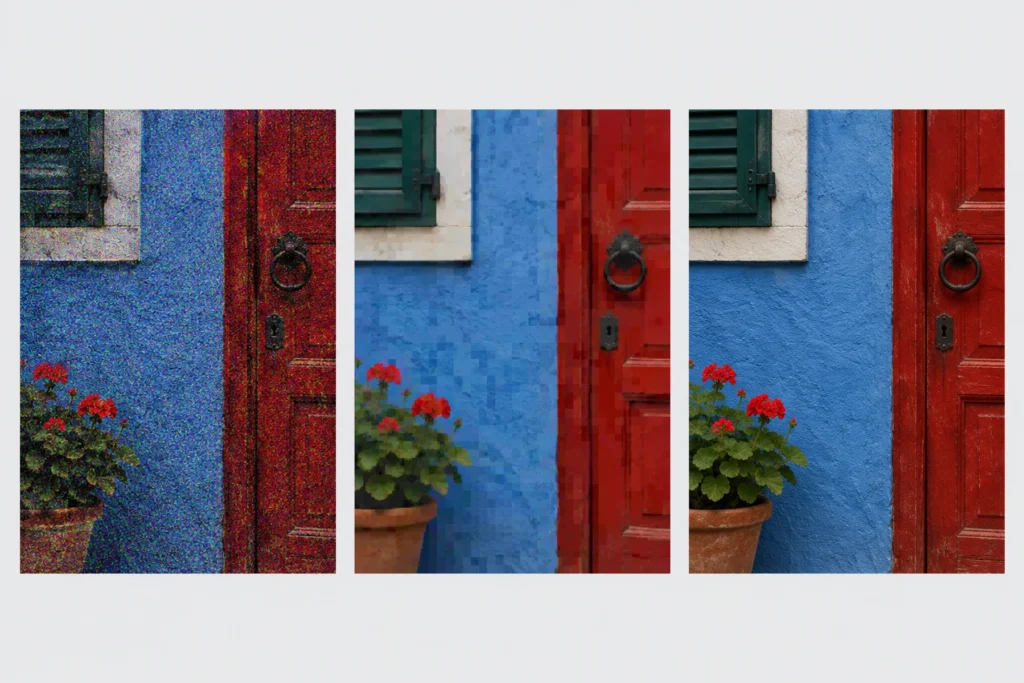
Before you move a single slider, it helps to know what you’re up against. Knowing the cause is half of how to fix grainy photos properly, because grain in digital pictures usually comes from one of three places, and each needs a slightly different treatment.
Sensor noise. This is the classic cause. In dim light, your camera can’t gather enough light, so it amplifies the signal by raising ISO. The amplification boosts random electrical noise along with the picture. You see it as colored dots in the shadows and a rough, sandy texture overall.
Underexposure that got brightened later. Shoot a dark frame, then lift the exposure slider, and you’re brightening all the noise that was hiding in the shadows. That’s why “dark and grainy” shows up together so often.
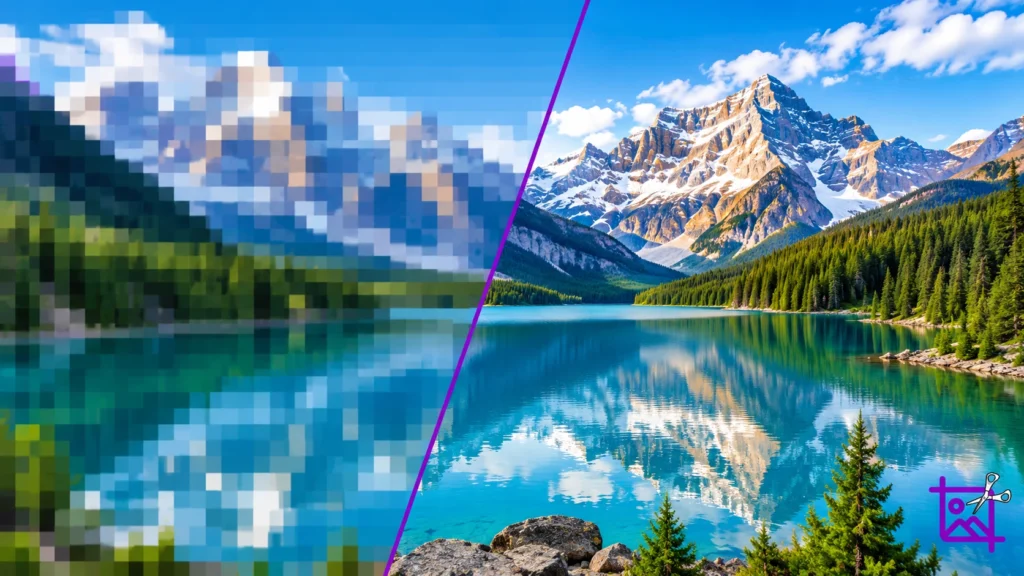
Compression and enlargement. Not every bit of grain is noise. A JPEG that has been saved, sent through a chat app, downloaded and saved again collects blocky artifacts that look a lot like grain. Stretching a small image to fill a big screen does something similar, because every flaw grows along with the pixels.
A quick test: open the file at 100% zoom. Colorful specks in dark areas point to sensor noise. Blotchy squares near edges point to compression. If you see both, which is common, you’ll probably combine more than one fix below.
Why Are My Photos So Grainy? The Usual Causes
If you’ve been wondering why are my photos so grainy, the answer is almost always on this list:
- High ISO. Many cameras start showing visible noise somewhere between ISO 1600 and 3200, and small sensors show it earlier.
- Low light with no flash. Dim rooms, evening streets and concerts push the camera into high-ISO territory automatically.
- Digital zoom on a phone. Pinch-zooming crops the middle of the frame and enlarges it, so noise and softness get magnified.
- Underexposed shots. Fixing a dark picture later in an editor drags the noise up with it.
- Small sensors. Phones and compact cameras gather less light than larger sensors, so they struggle sooner.
- Heavy compression. Messaging apps and social platforms recompress your uploads, and each round costs detail.
- Old prints and film scans. Real film grain, plus scanner noise, is baked into the file.
People who ask why do my pictures look grainy on a phone are usually hitting two of these at once: low light and digital zoom. If you keep wondering why are my pictures so grainy at night, start there. Once you’ve spotted the cause, how to fix grainy photos becomes a much easier decision.
How to Fix Grainy Photos: Which Method Should You Pick?
Here’s a quick comparison before we go through each method in detail.
| Method | Best for | Cost | Skill needed |
| Online AI denoiser | One-off fixes, no software | Free tiers exist | Beginner |
| Lightroom Denoise | RAW files, batches | Subscription | Intermediate |
| Photoshop | Fine control, selective edits | Subscription | Advanced |
| Phone editor | Quick social posts | Free | Beginner |
| GIMP or darktable | Free desktop editing | Free | Intermediate |
| Downsizing | Web and social use | Free | Beginner |
| Black and white | Salvaging a rough shot | Free | Beginner |

Method 1: Use an Online AI Denoiser
If you don’t own editing software, this is the quickest answer to how to fix grainy photos without installing anything. Search for an online photo denoiser or enhancer, upload the file, and let it clean the noise automatically.
A word of caution: free tiers often limit output resolution or add a watermark, and you’re uploading your picture to someone else’s server. Check the terms before you upload anything private, and compare the result to your original at 100% zoom. Some tools smooth so aggressively that fine detail like eyelashes and fabric texture disappears.
Method 2: How to Fix Grainy Photos in Lightroom
Lightroom is built for this job, particularly with RAW files, because RAW keeps far more information to work with. If you’re deciding how to fix a grainy photo that came straight from a camera, this is usually where to begin.
- Open the photo in the Develop module and find the Detail panel.
- Try the Denoise option first. It uses machine learning and tends to keep more texture than the manual sliders. Start with the default amount and nudge it up only if you still see speckles.
- If you’d rather work manually, raise Noise Reduction (luminance) until the sandy look fades, then raise Color to clear the colored dots.
- Use the Detail and Contrast sliders under luminance to win some sharpness back.
- Hold Alt (Option on Mac) while dragging a slider to preview the effect in black and white, which makes the noise easier to judge.
Because Lightroom edits are non-destructive, you can always dial back if the result looks waxy. Syncing settings across a set of similar photos also means one adjustment can clean up a whole batch from the same event.
Method 3: How to Fix Grainy Photos in Photoshop
Photoshop gives you the most control, especially when only part of the picture is noisy, like the shadows or the sky.
- Duplicate your background layer (Ctrl/Cmd + J), then convert the copy to a Smart Object so you can change your mind later.
- Go to Filter > Camera Raw Filter and open the Detail tab.
- Under Noise Reduction, raise the main amount slowly. Use Detail to protect edges and Color Noise Reduction to remove the colored specks.
- For a simpler option, try Filter > Noise > Reduce Noise and tick the box for removing JPEG artifacts if the file is compressed.
- If the face or main subject looks too soft, add a layer mask and paint the effect only onto the background and shadows.
- Finish with a light sharpening pass, not a heavy one. Sharpening too hard brings the grain right back.
Method 4: How to Fix Grainy Photos on Your Phone
You don’t need a laptop for a decent result, and anyone searching how to fix grainy pictures on an iPhone or Android can get most of the way in a minute or two.
- iPhone: Open the photo, tap Edit, scroll through the adjustment dials and choose Noise Reduction. A small nudge is usually enough. Pair it with a bit of added brightness only if the picture is dark, since brightening increases noise.
- Android: Most gallery apps and Google Photos include enhance or detail tools. Lightroom’s mobile app has a Detail section with noise controls too.
- Any phone: Turn off digital zoom for next time. Move closer instead, or crop afterward, because that gives you more control.
Method 5: Try Free Desktop Software
GIMP and darktable both offer noise reduction at no cost. In GIMP you’ll find denoising filters under Filters > Enhance, and darktable has a dedicated denoise module designed for RAW files. Plenty of people ask how to fix grainy photos without paying for software, and these two are the usual answer. They take a little longer to learn than a one-click online tool, but you keep full control of your files and you never hit a paywall.
Method 6: Make the Picture Smaller
This one surprises people, yet it’s a real part of how to fix grainy photos meant for the web. If your photo is going on Instagram, a blog or an email, you probably don’t need all the pixels it came with. Shrinking an image averages neighboring pixels together, which softens grain that was visible at full size.
The simplest answer to how to make a photo less grainy for screen use is to shrink it. Set the width and height to what you’ll actually display and export again. The free image resizer in pixels lets you type exact dimensions, keep the aspect ratio locked and choose between JPEG, PNG and WebP, and it offers a quality slider so you can keep the export at 90% or higher. Our resize JPEG image tool is handy when your original is a camera file, and the platform presets cover common social sizes.
To be clear about what this does: resizing hides grain, it doesn’t remove it. If you need a large final print, denoise first with one of the methods above.
Method 7: Stop Recompressing the Same File
Recompression is the hidden half of how to fix grainy photos that look blocky rather than speckled. If that’s your case, the file has probably been saved too many times at low quality. Go back to the earliest copy you have, before it was sent through a messaging app, and start from there. Save your edits at high quality, and compress only once at the very end. If you need a smaller file for an upload form, the image compressor and the resize to 1MB tool let you hit a size target without hammering the quality more than necessary.
Method 8: Denoise Before You Enlarge
Many people enlarge a noisy picture and then wonder why it looks worse. Enlarging makes every speck bigger. The right order is: reduce noise first, then upscale. Keep that rule in mind whenever you plan how to fix grainy photos you intend to print large. If you need a big canvas, a 4K image resizer can set the pixel dimensions, but keep your expectations realistic. Resizing up adds pixels, not detail, so a very grainy source will still look rough at 4K.
Method 9: Convert to Black and White
When a shot is too noisy to rescue in color, black and white is a genuine rescue move, and a smart part of how to fix grainy photos that color processing can’t save. Color noise (the red and green dots) disappears, and the remaining luminance grain starts to read as film texture, which most viewers find pleasant. Add a little contrast, keep the highlights clean and the picture can end up looking intentional.
How to Make Photos Less Grainy Before You Shoot
Knowing how to fix grainy photos in editing is useful, but the cheapest repair is the one you don’t need. If you want to know how to make photos less grainy in the first place, these habits help most:
- Shoot RAW if your camera allows it. You’ll get much more room for noise reduction later.
- Lower the ISO and compensate with a wider aperture or a slower shutter speed, as long as you can keep the camera steady.
- Expose properly. A slightly bright, well-exposed frame holds up far better than a dark one that gets lifted later. Just don’t blow out the highlights.
- Add light. Move toward a window, turn on a lamp, or bounce a flash off a wall.
- Use night mode on your phone and hold still for the full capture.
- Stay off digital zoom. Walk closer or crop afterward.
- Brace the camera. A tripod, a wall or a table lets you use slower shutter speeds and lower ISO.
Common Mistakes When Fixing Grainy Photos
Most errors in how to fix grainy photos come down to doing the steps in the wrong order. A few habits make the problem worse, so watch for these:
- Pushing noise reduction to the maximum. You’ll lose texture and end up with waxy skin.
- Sharpening first. Sharpening exaggerates noise. Denoise first, sharpen lightly afterward.
- Editing a screenshot or a chat copy. Always go back to the original file.
- Ignoring the output size. A fix that looks fine at 800 pixels wide can fall apart at full size.
- Exporting at low quality. Keep the export quality high and compress once.
Frequently Asked Questions
Can you fix grainy photos completely?
Not always. Light to moderate noise can be reduced a lot, but when a photo is severely underexposed, the detail was never recorded, so no tool can truly bring it back. The goal is a cleaner, more pleasant picture, not a perfect one.
How to fix grainy photos for free?
Start with your phone’s built-in editor or GIMP and darktable on desktop. For quick jobs, a free online denoiser works too, though you should check for watermarks and resolution caps first.
How to fix grainy images that came from a messaging app?
Those files have usually been compressed twice. Ask the sender for the original, or if you have the original camera file, use that instead. If the compressed copy is all you have, try noise reduction with JPEG artifact removal switched on.
Does resizing a photo make it less grainy?
Often, yes. Making the image smaller blends pixels and hides noise, which is why a grainy photo can look fine as a small web image. It won’t help if you need to view or print the picture large.
Why do iPhone photos look grainy at night?
Small sensors, high ISO and digital zoom are the usual reasons. Night mode, a steady hand and staying off zoom make a visible difference.
Final Thoughts
Grain isn’t a death sentence for a good picture. Work out whether you’re facing noise or compression, reduce noise before you sharpen or enlarge, keep the strength gentle, and match the output size to where the image will be used. Next time you wonder how to fix grainy photos, remember the order: diagnose, denoise, resize, export once. That’s the whole process of how to fix grainy photos, from first look to final file.
If you need to prepare the cleaned-up image for a website, social post or form, you can set exact pixel dimensions or a file-size target with the free image resizer in pixels, no signup needed.