By Alex, Image Optimization Writer. Last updated October 2026.
You open a picture you were sure looked fine, and it has turned into a mosaic of tiny squares. Maybe it arrived through WhatsApp. Maybe you cropped too tightly, or stretched a small logo across a wide banner. Whatever caused it, the question is the same, and this guide answers it: how to fix pixelated photos without losing an afternoon to tools that overpromise.
Short answer on how to fix pixelated photos: pixelation means the image doesn’t contain enough pixels for the size you’re displaying it at. Detail that was never saved can’t be truly restored, but you can usually get a clean, usable result by finding a better original, resizing the right way, running an AI upscaler, or softening the blocks with a blur-and-sharpen pass. Which one works depends on why the squares appeared, so we’ll diagnose first.
What Pixelation Actually Is
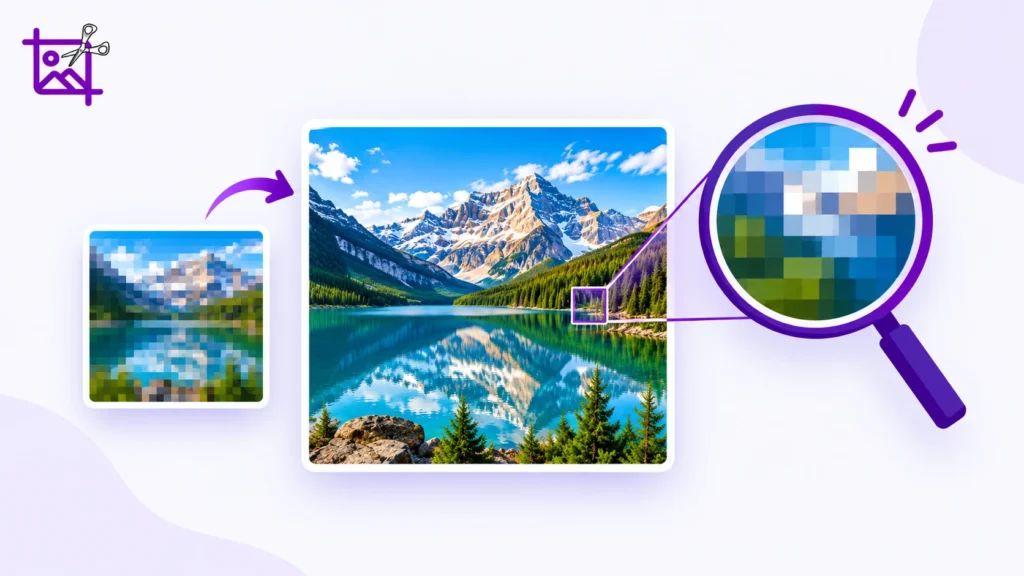
A digital photo is a grid of colored squares. Show that grid at a size where each square is large enough to notice, and your eye stops seeing a picture and starts seeing the grid. That’s all pixelation is.
Five situations cause almost every case:
- Enlarging a small image. A 400 × 300 file stretched to fill a 1920-pixel-wide screen has to invent most of the pixels it displays.
- Cropping too tightly. Zooming into one corner of a photo throws away everything outside it, including most of your pixels.
- Heavy JPEG compression. JPEG works in 8 × 8 pixel blocks. Squeeze the file hard enough and those block edges become visible, usually with smudgy color around sharp edges.
- Messaging apps and social platforms. They shrink and recompress your upload to save bandwidth, which is why a photo can look perfect on the sender’s phone and blocky on yours.
- Copies of copies. Screenshotting a screenshot, or re-saving a JPEG over and over, adds a fresh round of damage each time.
Diagnose First: How to Fix Pixelated Photos Starts With the Cause
Spend thirty seconds on this step. It decides which method will help and which will waste your time. Plenty of guides on how to fix pixelated photos jump straight to a tool, which is why people try three apps and still end up with blocky results.
| What you see | Most likely cause | Best route |
| Big, chunky squares after enlarging | Too few pixels for the display size | Method 1, 2 or 3 |
| Small 8 × 8 blocks and smudgy edges | JPEG compression | Method 4 |
| Fine on your phone, blocky on a large monitor | Low native resolution | Method 2 or 3 |
| Fine on screen, blocky in print | Not enough pixels per inch | Method 6 |
| Stair-stepped edges on a logo or text | Small raster graphic scaled up | Method 5 |
How to Fix Pixelated Photos in 7 Steps, From Easiest to Hardest
Method 1: Go Back to a Better Original
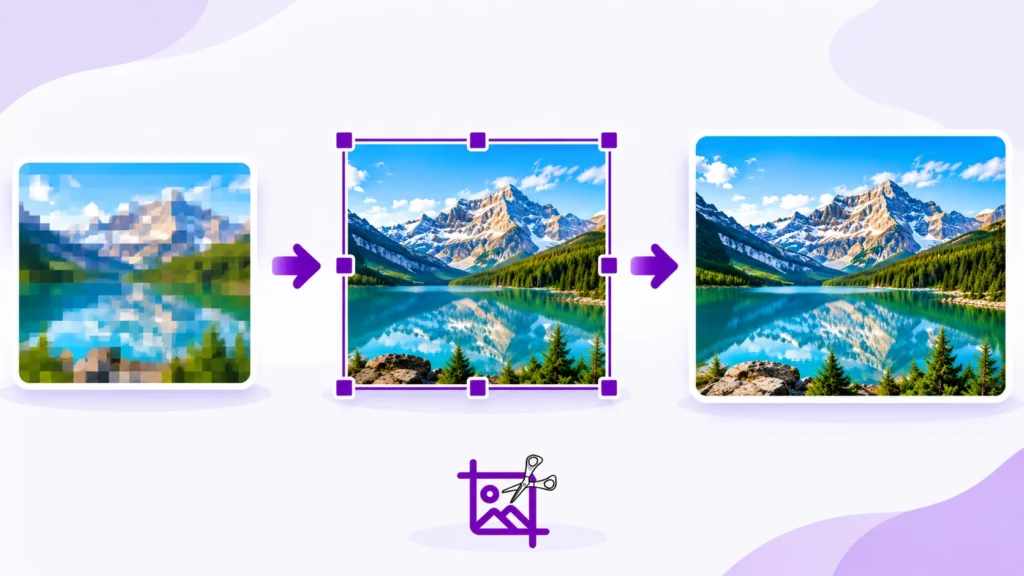
This is the only fix that returns real detail, which makes it the smartest first move in how to fix pixelated photos.
Check your phone’s camera roll, your cloud backup, your email attachments and the original website. If the picture reached you through a chat app, ask the sender to resend it as a document or file instead of a regular photo, or to use the app’s HD option if it has one. That usually bypasses the automatic compression.
If you’re working from a screenshot, retake it at a larger window size or a higher display scale. A fresh capture beats any repair.
Method 2: Resize With the Right Algorithm
Resizing can make pixelation worse or hide it, depending on direction and method. Anyone searching how to fix pixelated photos with a simple resizer should know that direction matters most.
Shrinking an image is the easiest cure. A photo that looks blocky at 3000 pixels wide often looks perfectly clean at 800, because the same squares are now too small to see. If the image is going on a web page, a social post or an email, you may not need to “fix” anything at all. You just need to display it smaller.
Enlarging is where the algorithm matters, and it’s the part of how to fix pixelated photos that most people get wrong:
- Bicubic or Lanczos (often labeled “High Quality”) blends neighboring pixels smoothly. This is the right choice for photographs.
- Bilinear is faster but softer.
- Nearest neighbor copies pixels without blending, which produces hard blocks. It’s only the right choice for pixel art, where you want crisp squares.
If you resize with the wrong method, you create the exact problem you’re trying to avoid. A good online tool lets you pick. The Image Resizer in Pixel tool, for example, offers High Quality, Fast and Nearest Neighbor options, an aspect-ratio lock, and a quality slider for JPEG and WebP output, so you can set exact width and height values in pixels without stretching the picture out of proportion.
One honest limit: ordinary resizing, even with the best algorithm, only smooths the blocks when you enlarge. It can’t add detail. For that you need Method 3.
Method 3: Use an AI Upscaler
AI upscalers study millions of example photos, then predict what texture, edges and detail probably belong in the gaps. Done well, a blocky face or a fuzzy landscape comes back looking far sharper than any traditional resize. For most enlargements, this is the modern answer to how to fix pixelated photos.
Your options fall into three groups:
- Desktop apps that run on your own computer, such as Upscayl (free and open source) or Topaz Photo AI (paid). Your files never leave your machine, which matters for family photos and client work.
- Browser-based tools such as Pixelbin, Let’s Enhance, Pixelcut and Picsart. They’re convenient, but free tiers usually come with monthly caps, size limits or watermarks, so check the terms before you plan a whole batch around them.
- Built-in editor features, like Super Resolution in Adobe Camera Raw for supported files.
Some practical rules make a big difference:
- Start from the cleanest copy you have. Feeding the tool a twice-compressed screenshot gives it little to work with.
- Upscale in steps. Going 2× and checking the result usually looks more natural than jumping straight to 8×.
- Look at faces, text and fine patterns at 100% zoom. AI can invent details. It sometimes produces plastic-looking skin, warped letters or patterns that were never there.
- Never trust AI-recovered numbers or text. If an invoice, license plate or sign matters, the “reconstructed” characters are a guess, not evidence.
Method 4: Soften JPEG Blocks With Blur and Sharpen
When the problem is compression blocks rather than missing resolution, a gentle blur-then-sharpen pass often helps, and it works in free editors like GIMP and Photopea as well as Photoshop.
- Open the image and zoom to 100%.
- Apply a Gaussian Blur with a very small radius, roughly 0.5 to 1.5 pixels. You’re trying to melt the block edges, not blur the picture.
- Apply Smart Sharpen or Unsharp Mask at a low amount to bring back edge definition.
- If your editor has a “Remove JPEG Artifacts” option (Photoshop includes one in its Reduce Noise filter), run that first.
- Compare against the original and stop early. Over-sharpening creates bright halos around edges that look worse than the blocks did.
This is the old-school approach to how to fix pixelated photos, and it still holds up for mild damage. It won’t rescue a badly stretched thumbnail.
Method 5: Fix Pixelated Screenshots, Logos and Text
Small graphics are the hardest category, because hard edges leave nowhere to hide. Knowing how to fix pixelated photos of people and scenery doesn’t automatically carry over to a tiny logo.
- Screenshots: recapture at a higher zoom level, or export the content from its source instead.
- Logos: ask whoever made the logo for the original vector file (SVG, AI or EPS). Vectors scale to any size with zero pixelation. If none exists, an AI upscaler followed by a manual redraw is often the cleanest route.
- Text inside images: rebuild it as real text over the picture whenever possible. It will always be sharper than a repaired bitmap.
Method 6: Fix Pixelation in Print
A photo can look fine on screen and still print badly, because print needs far more pixels per inch than a display does. Paper is where how to fix pixelated photos gets least forgiving. A common target is 300 pixels per inch for sharp prints. Multiply the print size in inches by 300 to find the pixels you need:
| Print size | Pixels needed at 300 ppi |
| 4 × 6 in | 1200 × 1800 |
| 5 × 7 in | 1500 × 2100 |
| 8 × 10 in | 2400 × 3000 |
| 11 × 14 in | 3300 × 4200 |
| A4 (8.27 × 11.69 in) | about 2480 × 3510 |
Large posters that people view from a few feet away can get by with 150 to 200 pixels per inch. If your file falls short, upscale with Method 3 before you send it to the printer, and set the output in the units the printer asks for. If they want centimeters or inches, an image resizer that works in centimeters saves you doing the math by hand.
Method 7: Stop Pixelation Before It Starts
The best answer to how to fix pixelated photos is not needing to. Prevention costs nothing, and it’s worth building into your routine:
- Shoot and export at the highest quality setting your camera or phone offers.
- Edit in a lossless format like PNG or TIFF, and export a JPEG only once, at the end, at roughly 80 to 90% quality.
- Keep your original files untouched and work on copies.
- Don’t resend the same photo through several apps in a row.
- For websites, upload images at about twice the size they’re displayed at so they stay sharp on high-density screens, then compress them for speed.
Pixelated Images on Your Website or Online Store
If you run a site or a shop, pixelation isn’t only annoying. It makes a business look careless, and shoppers judge product quality by how clearly they can see it. Marketplaces such as Amazon ask for at least 1,000 pixels on the longest side before zoom works, and many sellers go well beyond that.
For site owners, how to fix pixelated photos is really a question of workflow rather than rescue. A simple one keeps product and blog images crisp:
- Start from the largest original you have.
- Resize down to the exact dimensions each placement needs, using a High Quality method. Dedicated tools such as a 4K image resizer, a JPEG resizer or a PNG resizer cover the common cases.
- Export to WebP or optimized JPEG so the page still loads fast.
- Check the result on a phone and on a large screen before publishing.
When a Pixelated Photo Can’t Be Fixed
Be realistic: knowing how to fix pixelated photos includes knowing when to stop. A 100 × 100 thumbnail will never become a poster, and no software can recover detail that was never recorded. AI can make a convincing guess, but a guess is not the original.
The same applies to images that were deliberately pixelated to hide a face, a license plate or private information. Upscalers don’t reveal what’s underneath. They generate something plausible, which may look nothing like the real person or number, and shouldn’t be treated as proof of anything.
In cases like these, the honest options are to find another source, reshoot, or redesign around the image you have.
Frequently Asked Questions
Can you really fix a pixelated photo?
Often, yes, within limits. How to fix pixelated photos depends on how much real detail survives. Mild pixelation from compression or a modest enlargement can be cleaned up well. Severe pixelation from a tiny source can be improved with AI, but the result is a reconstruction, not a restoration.
Does resizing fix a pixelated image?
Making the image smaller hides the blocks. Making it larger with a good algorithm smooths them but doesn’t add detail. For real improvement on an enlargement, combine resizing with an AI upscaler.
How to fix pixelated photos on an iPhone or Android phone?
Start with Method 1 and look for a better original in your camera roll or cloud backup. If you can’t find one, use a browser-based upscaler or a mobile editing app with an enhance feature. The workflow is the same: clean copy in, upscale in steps, check at full zoom.
Why do my photos look pixelated after I send them?
Messaging apps and social networks recompress and shrink uploads automatically. Send the picture as a document or file, or share a cloud link, so the platform doesn’t touch it.
Is there a free way to unpixelate a picture?
Yes. GIMP and Photopea are free editors, Upscayl is a free desktop upscaler, and several browser-based tools offer limited free use. Free options may cap file size, daily use or output resolution.
What resolution do I need to avoid pixelation?
For screens, give the image at least as many pixels as the space it fills, and about double that for sharp results on high-density displays. For print, aim for around 300 pixels per inch.
Final Thoughts on How to Fix Pixelated Photos
Pixelation is a symptom, and the right cure depends on the cause. Find a better original first. If you can’t, resize with the correct algorithm, try an AI upscaler for enlargements, and use a gentle blur-and-sharpen pass for compression blocks. Rebuild logos and text rather than repairing them, and check your pixel math before anything goes to print.
Next time someone asks you how to fix pixelated photos, you’ll know the real answer starts with one question: how many pixels did we have to begin with? If your next step is setting exact pixel dimensions without stretching or squashing the picture, try the free Image Resizer in Pixel tool and preview the result before you download.